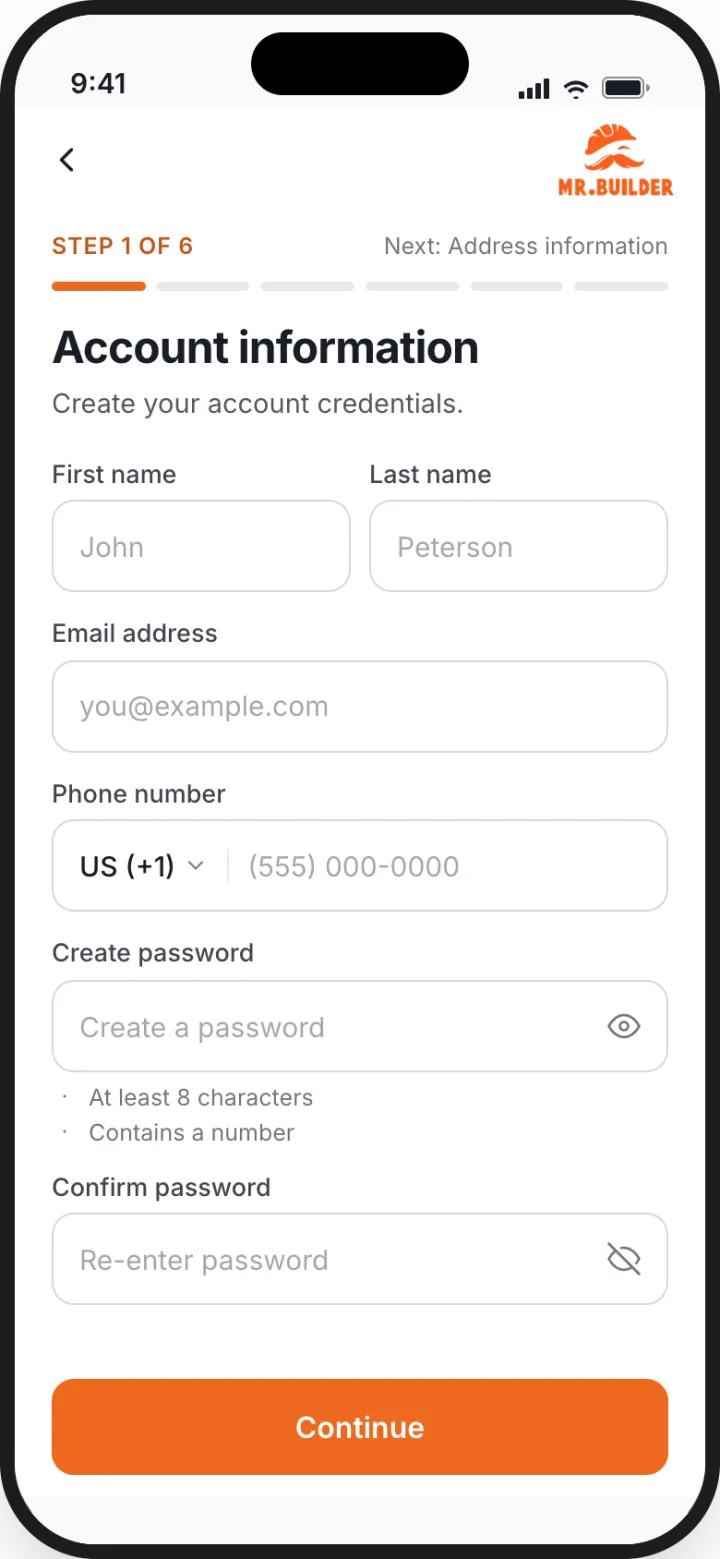

Less chasing. More installing.
Location, distance, preferred dates, payment and the customer's description appear on the card. Structure details (type, mounting, W × L × H) are one tap away.
Three kinds of work from the same marketplace. Inspection visits produce a report that MrBuilder prices; if the customer approves, it becomes your installation or repair job.
Filter the marketplace by service type, distance and dates so you only see work you can actually take.
Accepted jobs land on your calendar with the agreed dates and times. Reschedule requests from customers show up as a proposal you can accept or counter.
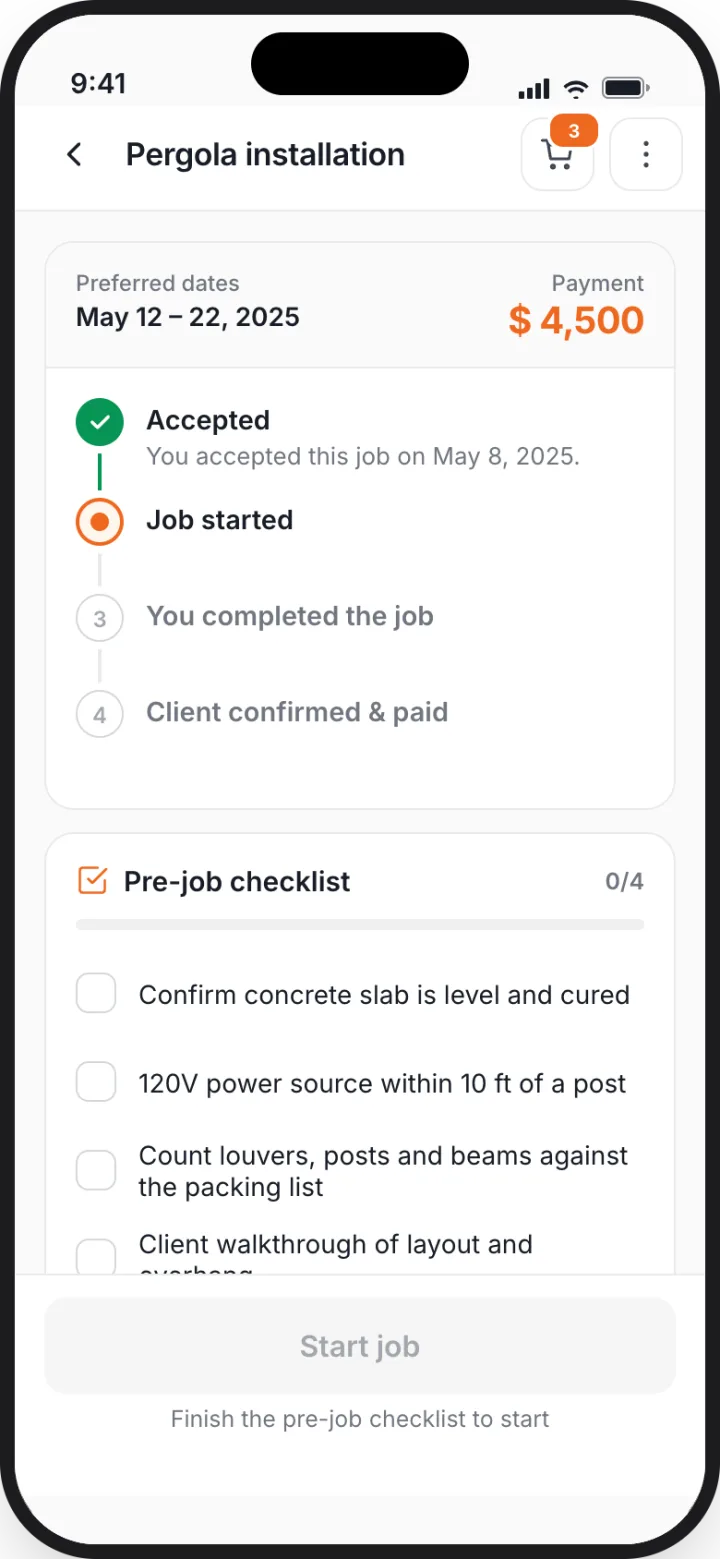
Pre-job checklists, before-work evidence and completion photos are part of the job, shared with the customer and MrBuilder, so disputes are rare and resolvable.
Each job shows the payment and the platform fee before you accept. Transactions and payouts are listed in the app.
The contractor journey, step by step.
Each step below is paired with the actual screen from the MrBuilder contractor app. Names, prices and dates in the screens are sample data.
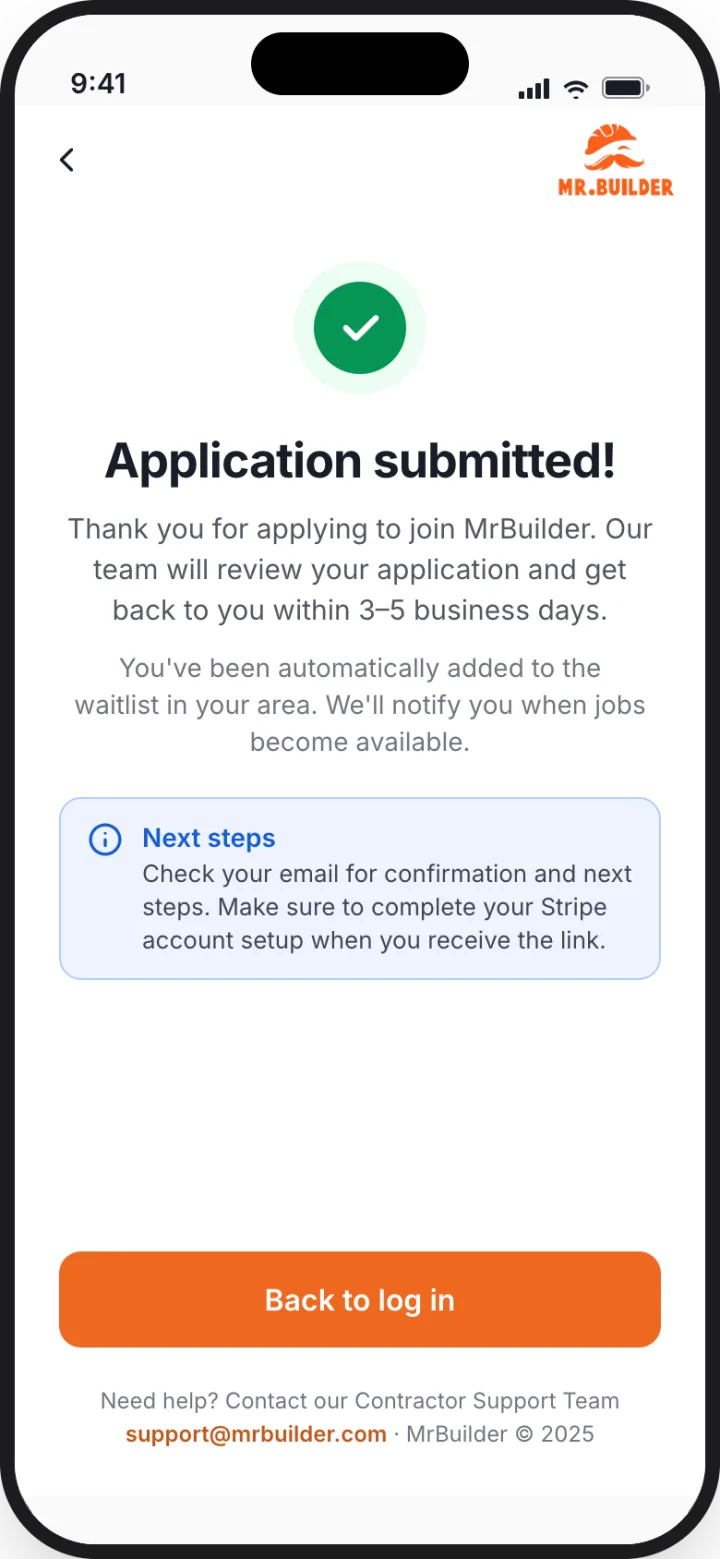
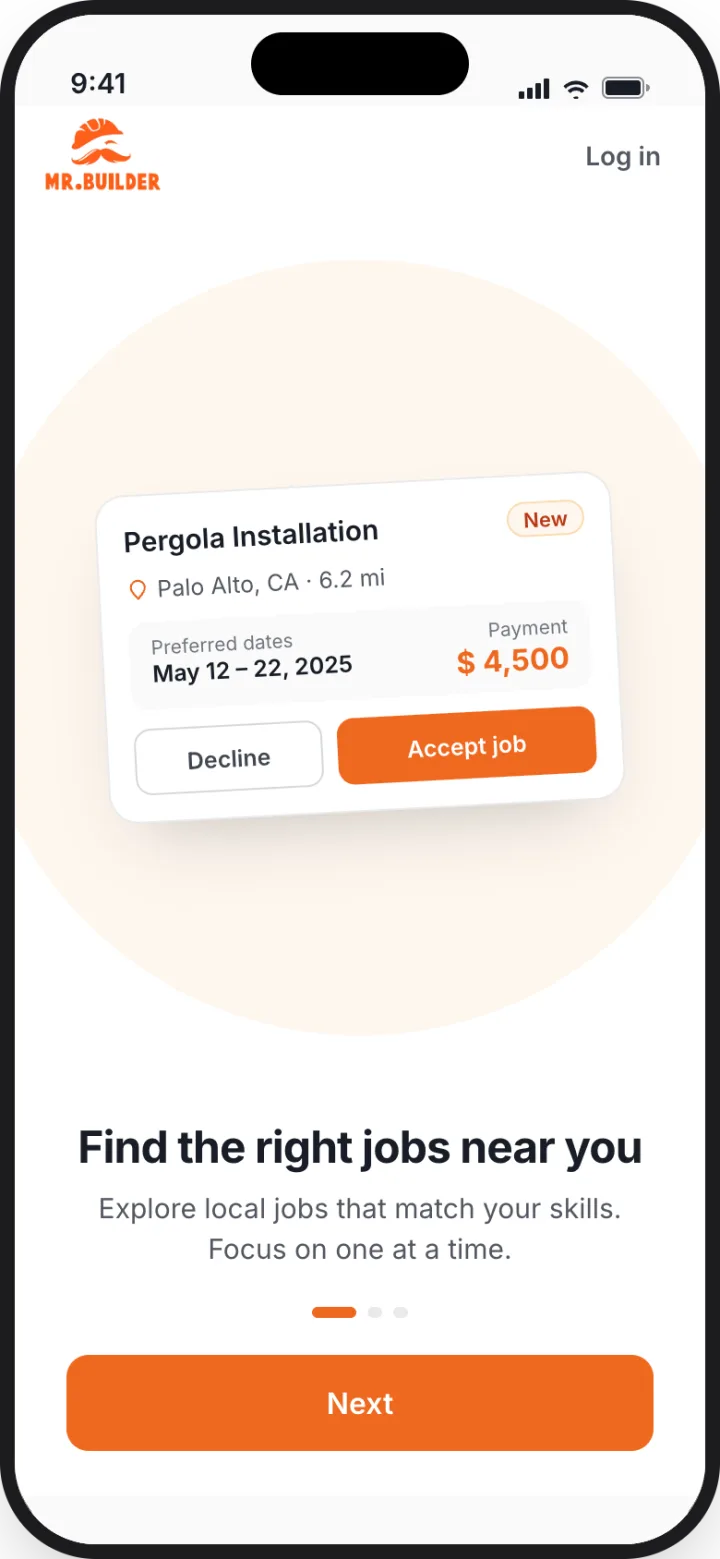
Apply from the app.
Sign-up walks through account information, address, your role, business information, insurance and skills, and final steps. Your skills use the same eight service types customers pick from, so matching is exact.
Browse the marketplace.
New jobs near you appear on Home with a New tag, service type, location and distance, the customer's description, preferred dates and payment. Filter by what you do.
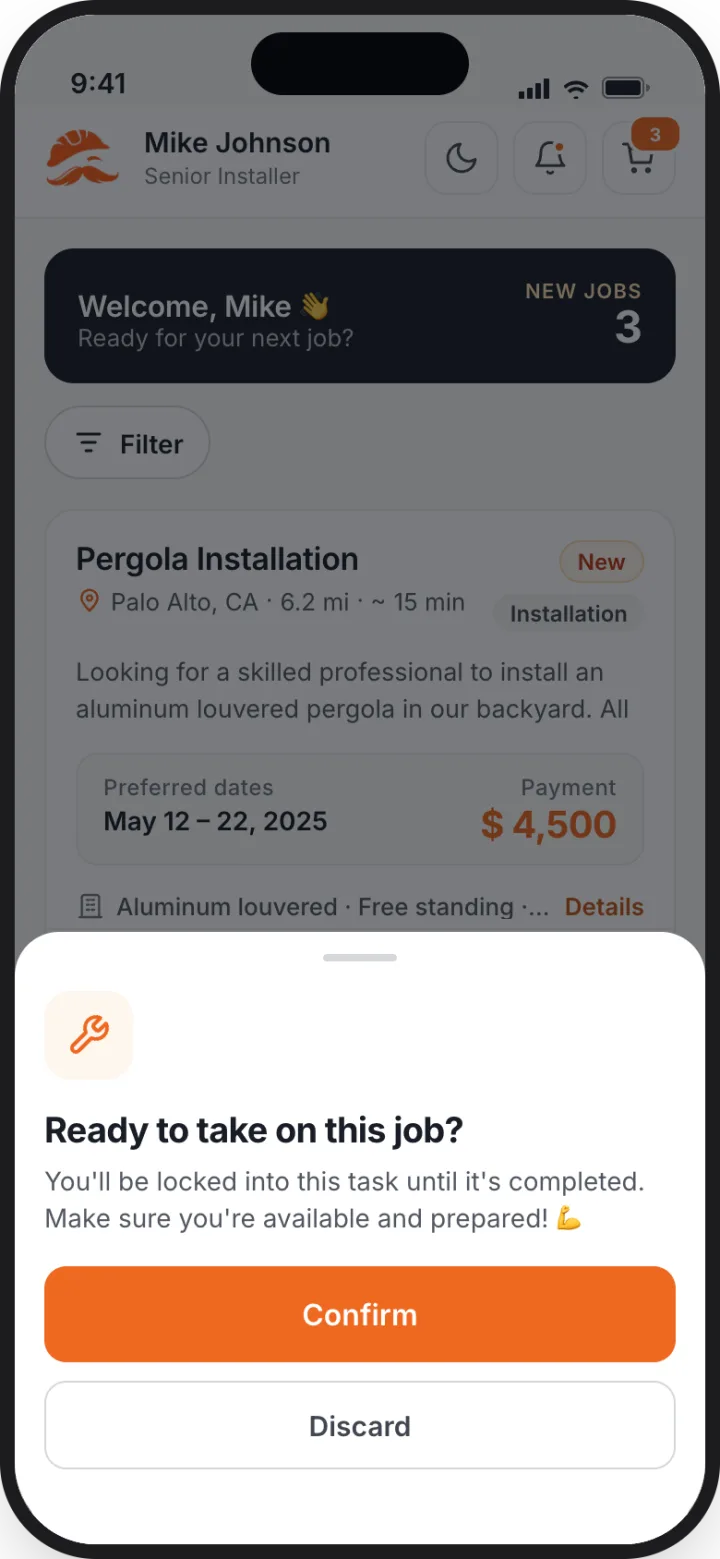
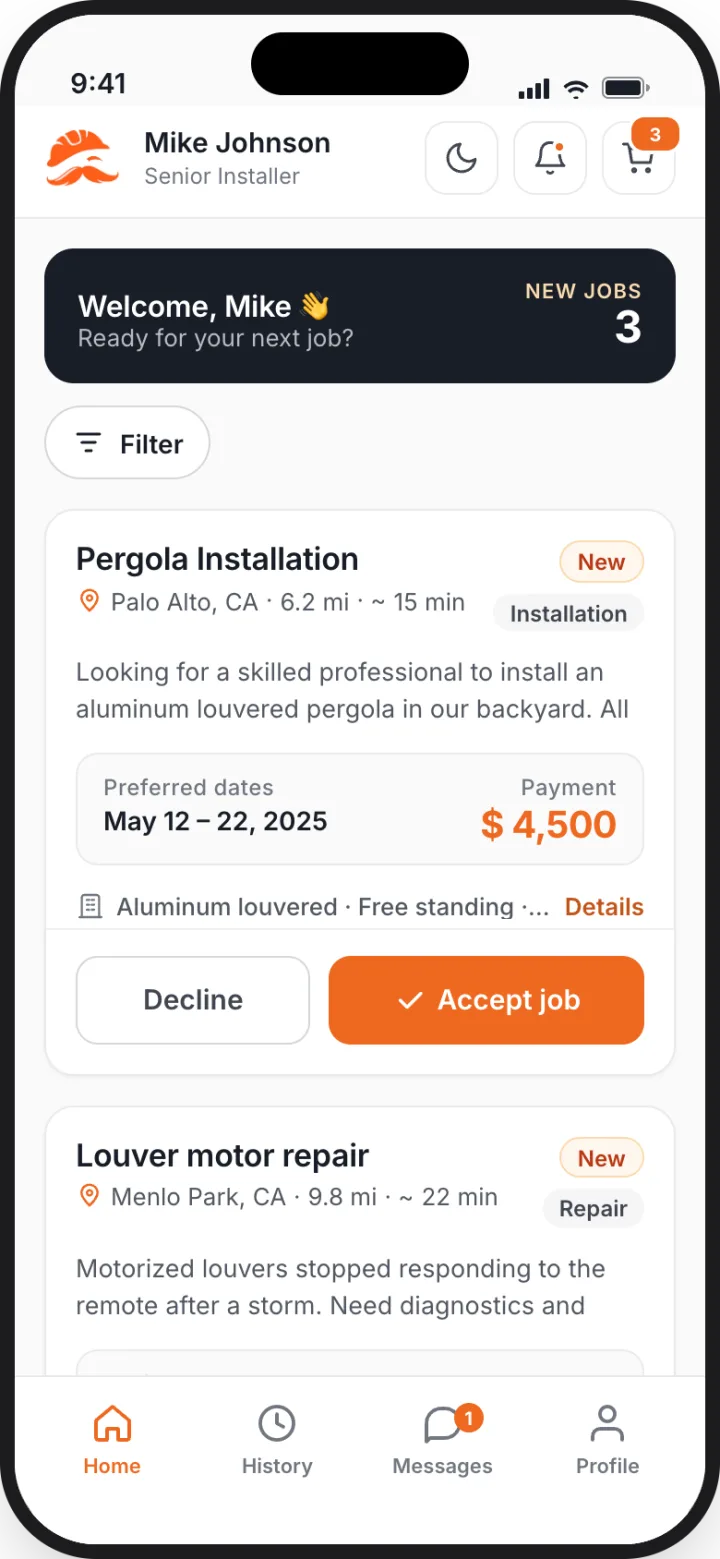
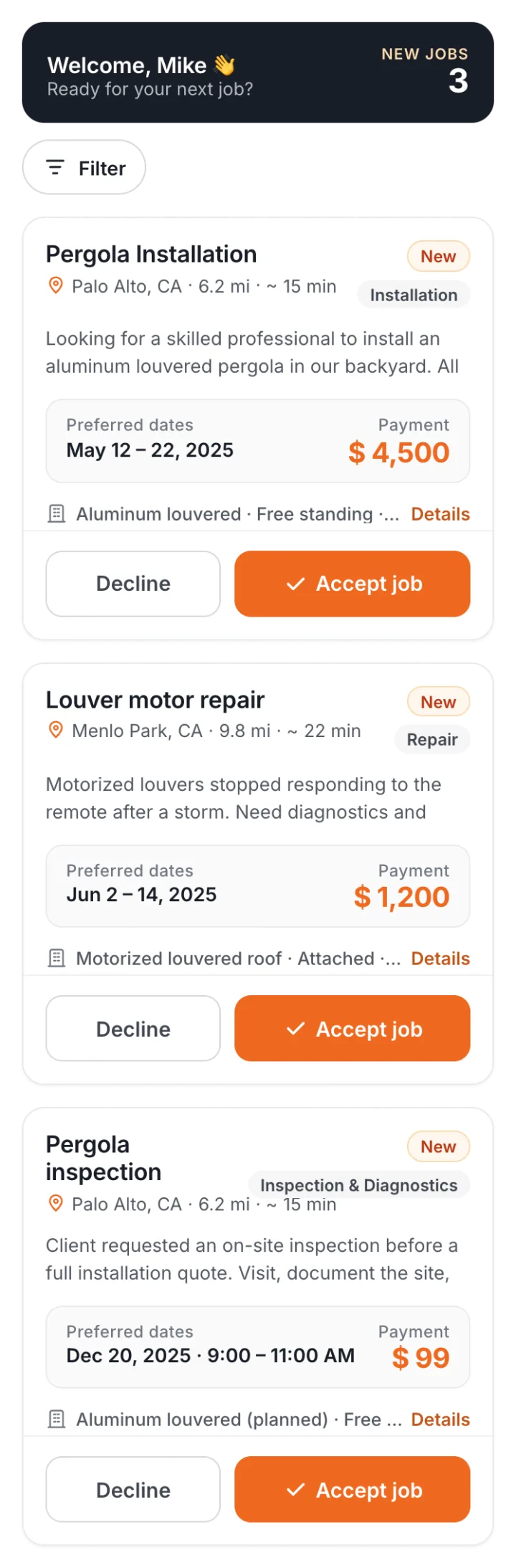
Read the details, then commit.
Tap Details to see the structure specs, client notes, address and request ID. Accepting notifies the customer that a contractor is assigned and adds the job to your schedule.
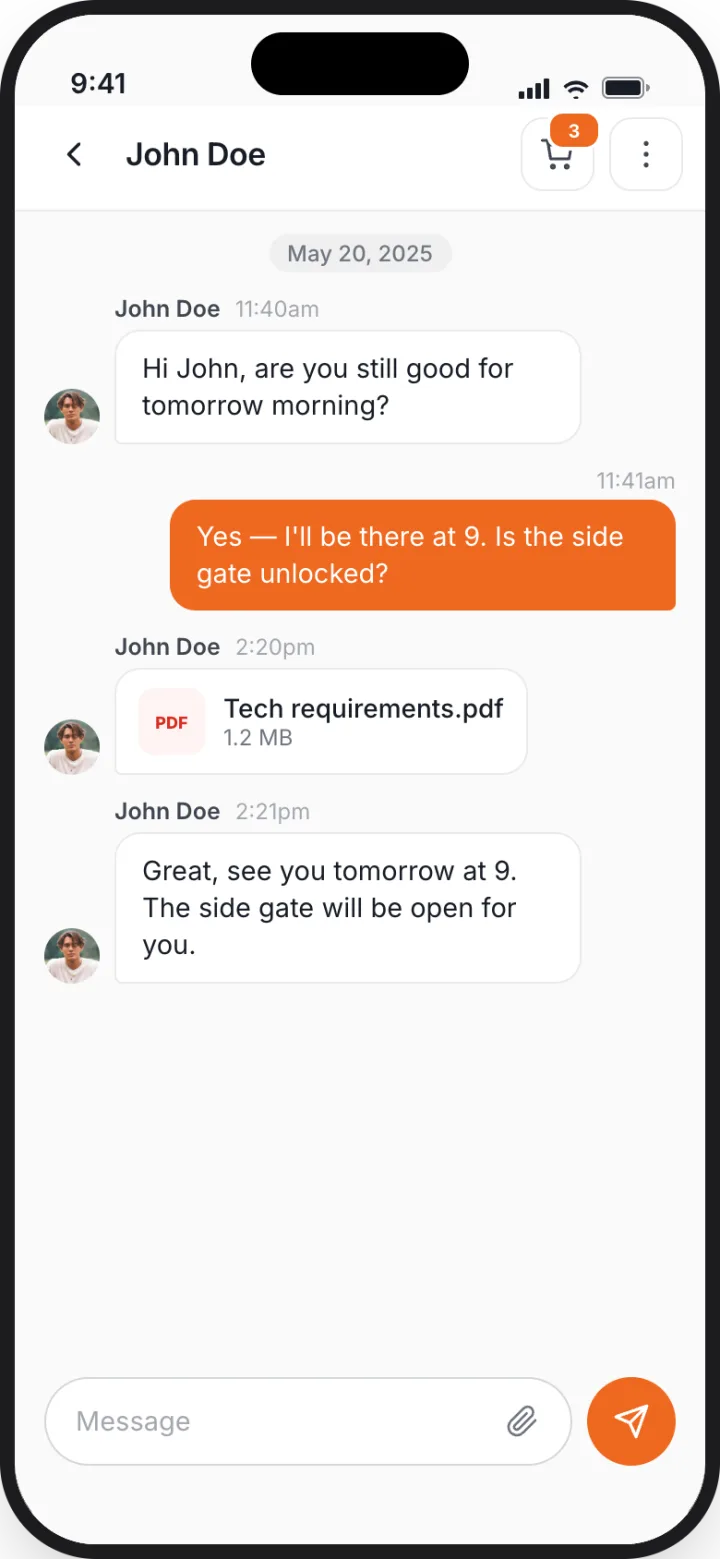
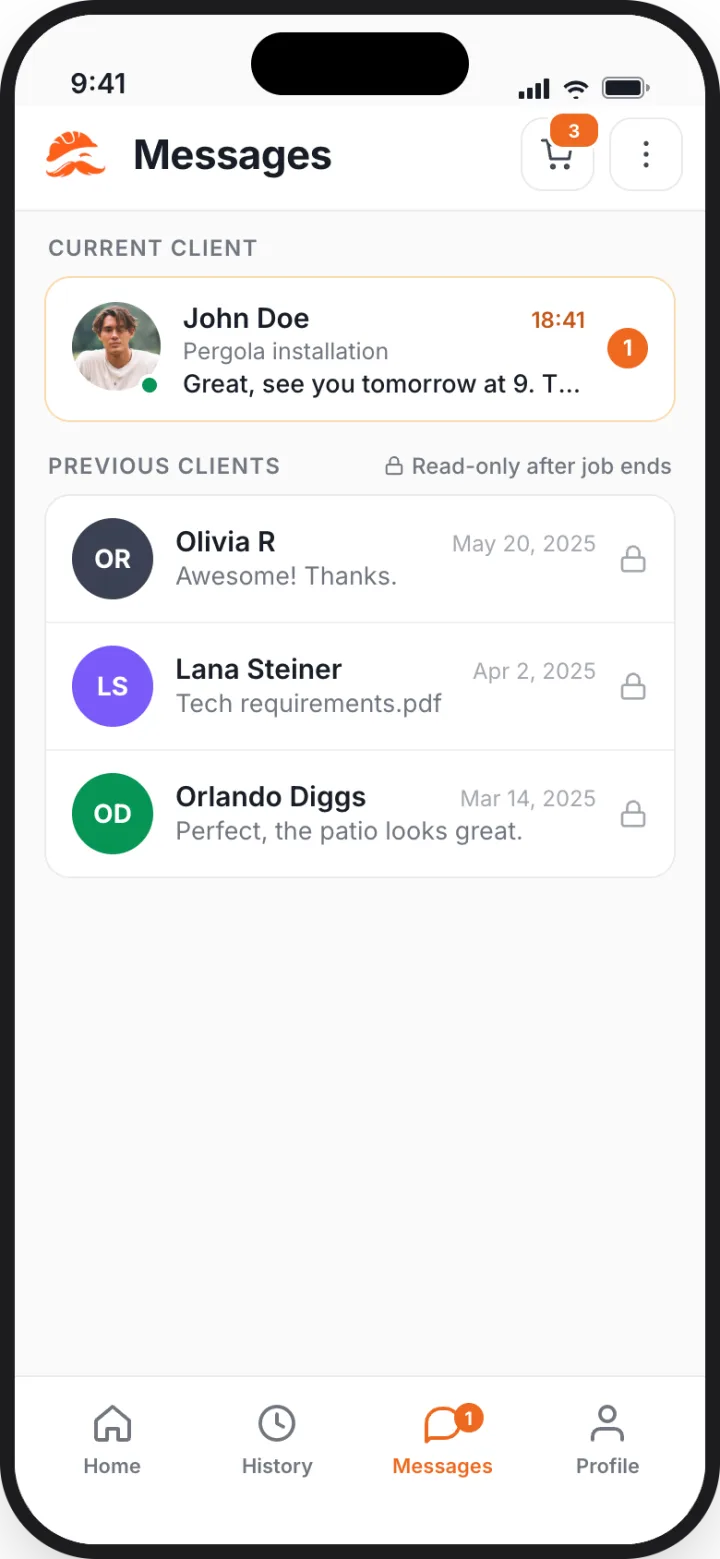
Message the client in the job thread.
Each job has its own chat. Ask questions before you arrive, share updates during the work and send photos. The customer sees the same thread in their app.
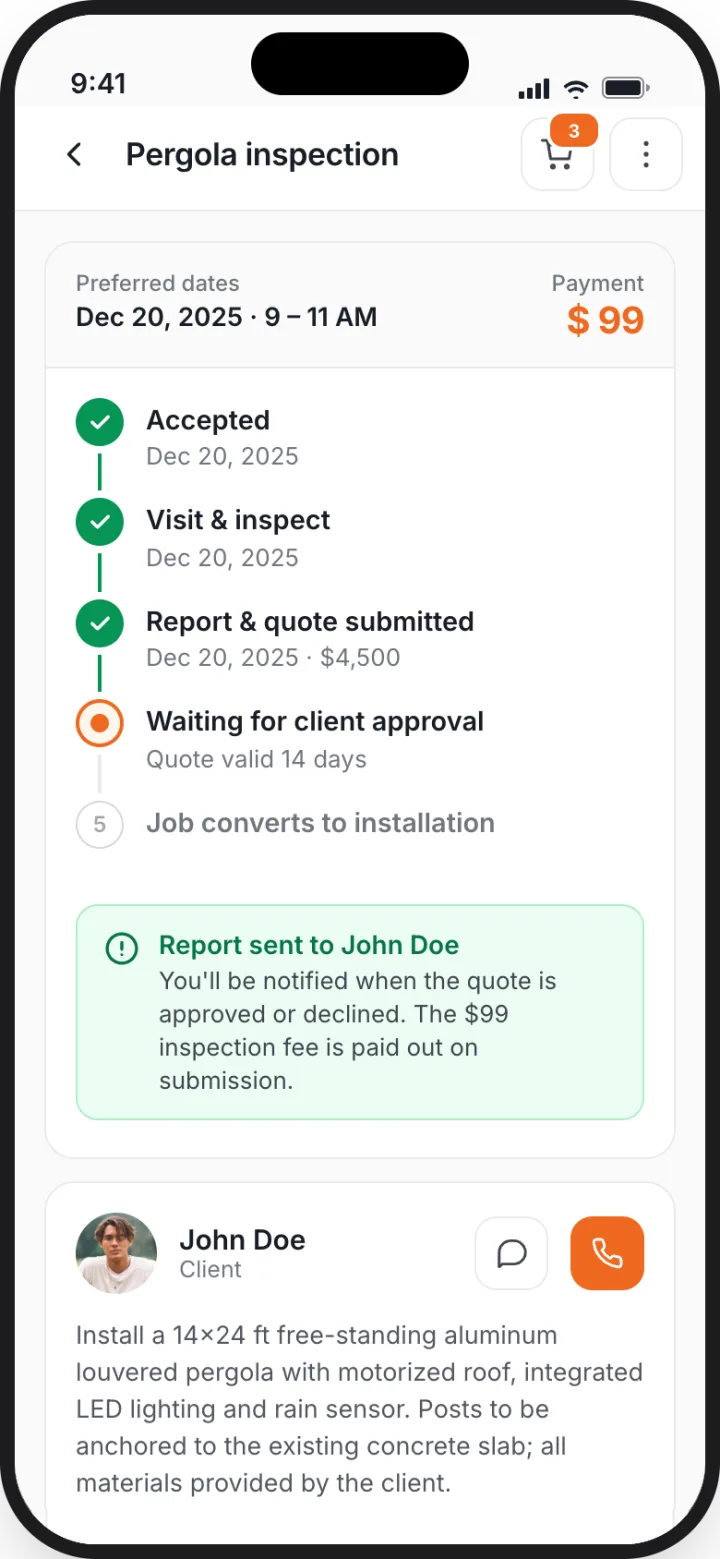
Report facts. MrBuilder prices them.
On an inspection job you record findings and photos and submit a structured report. MrBuilder generates the quote from it; the customer approves in their app and the work converts to a job you can take.
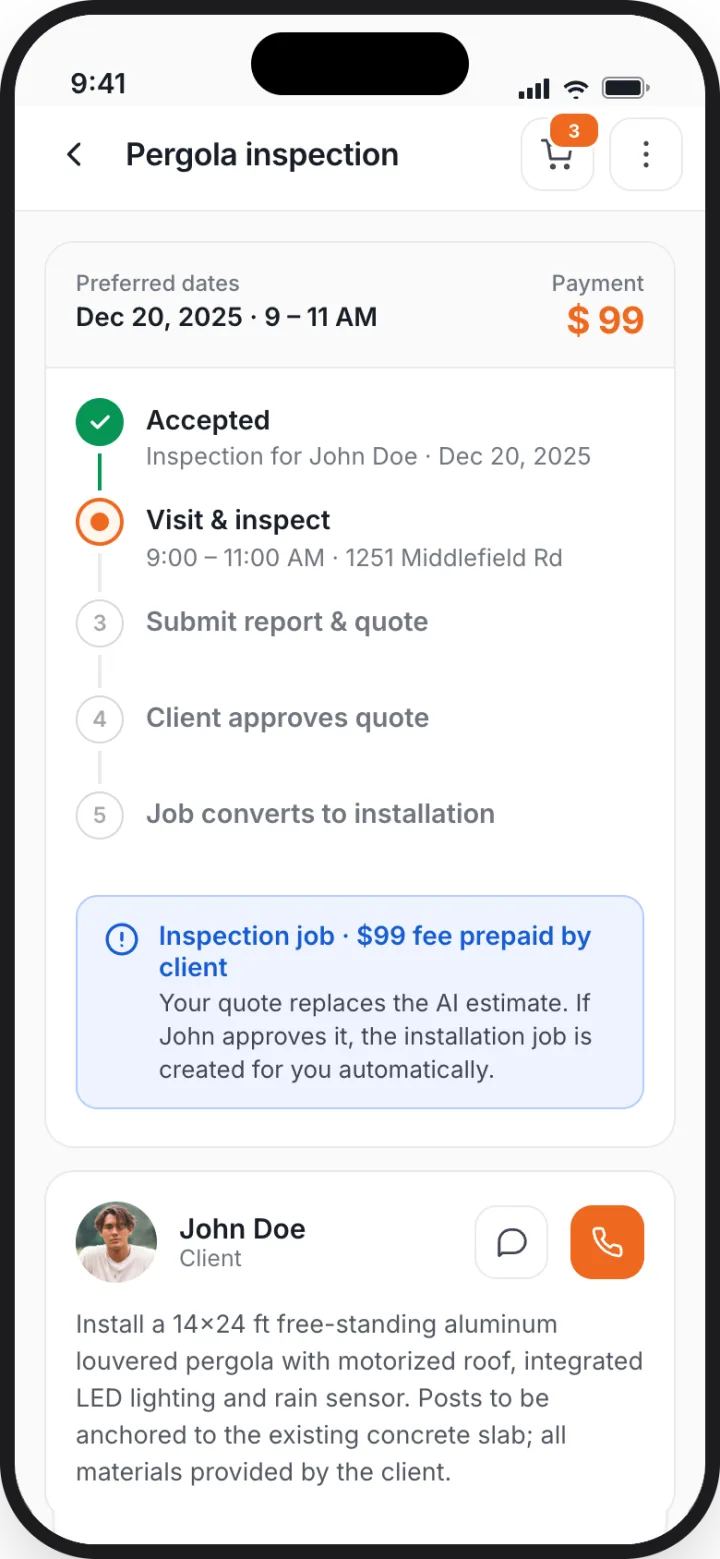

Update progress as you go.
Complete the pre-job checklist, tap Start job, and the customer's timeline moves to In progress. When you're done, mark the job complete with proof photos and a note.
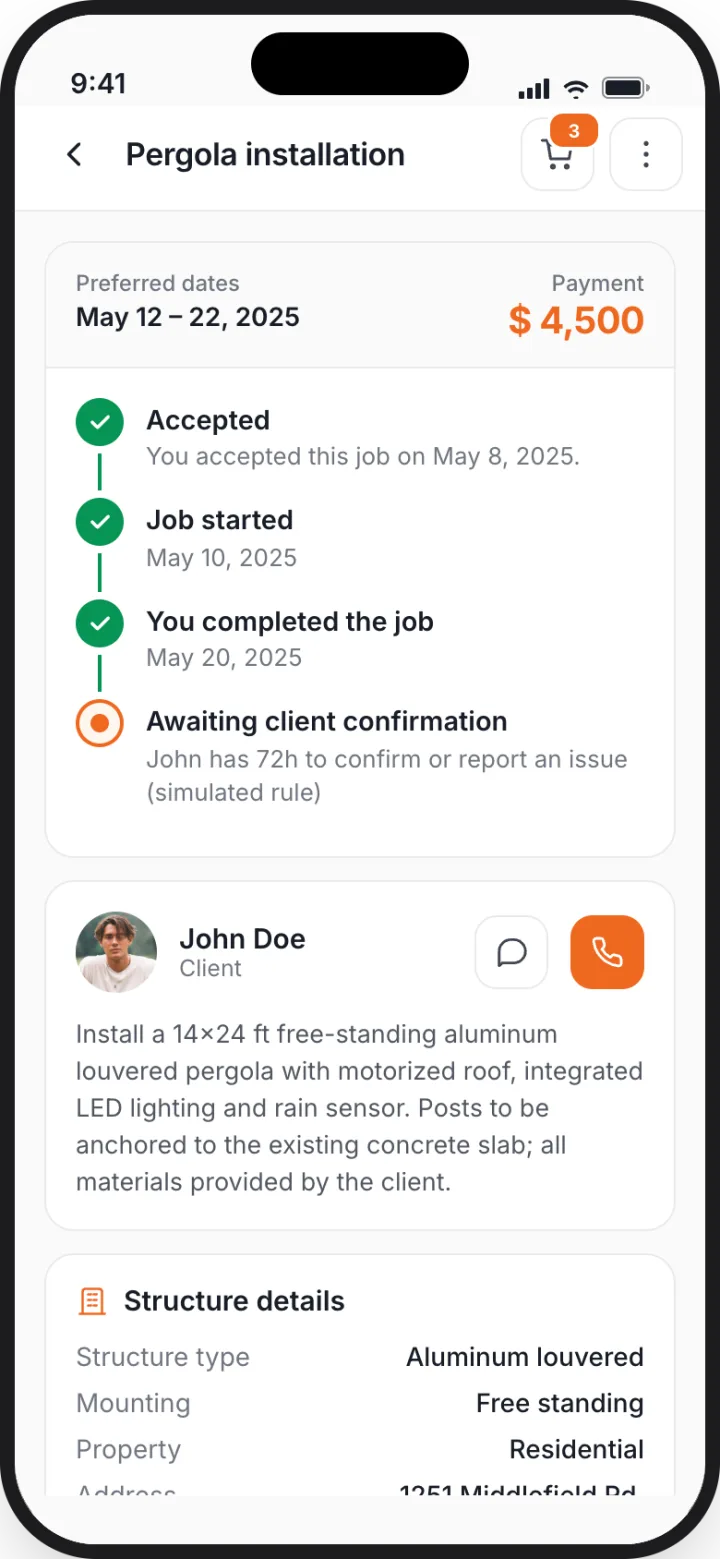
The customer confirms. The job closes.
Once the customer confirms the finished work, the job is marked Client confirmed & paid, moves to your History and appears in Payments & transactions.
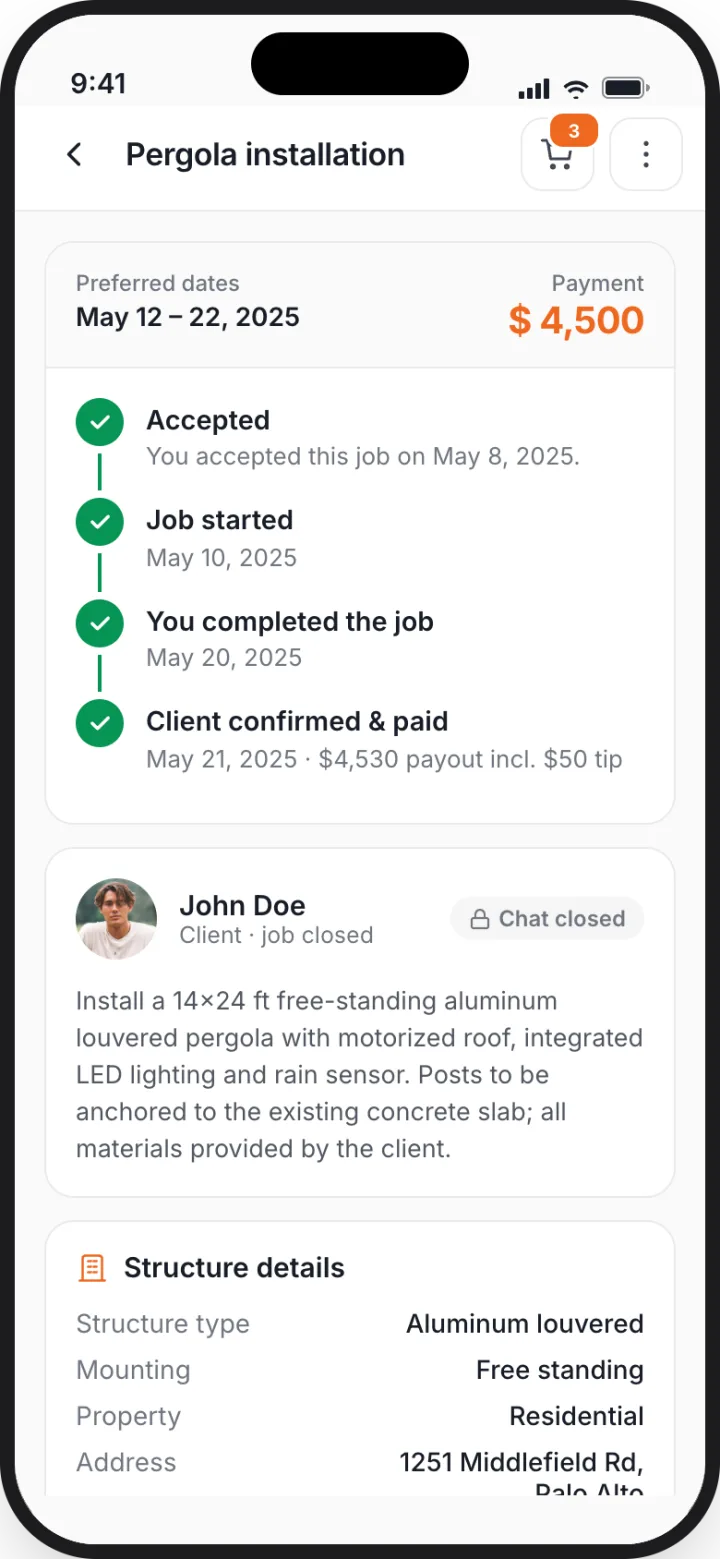
Everything a job needs, in one app.
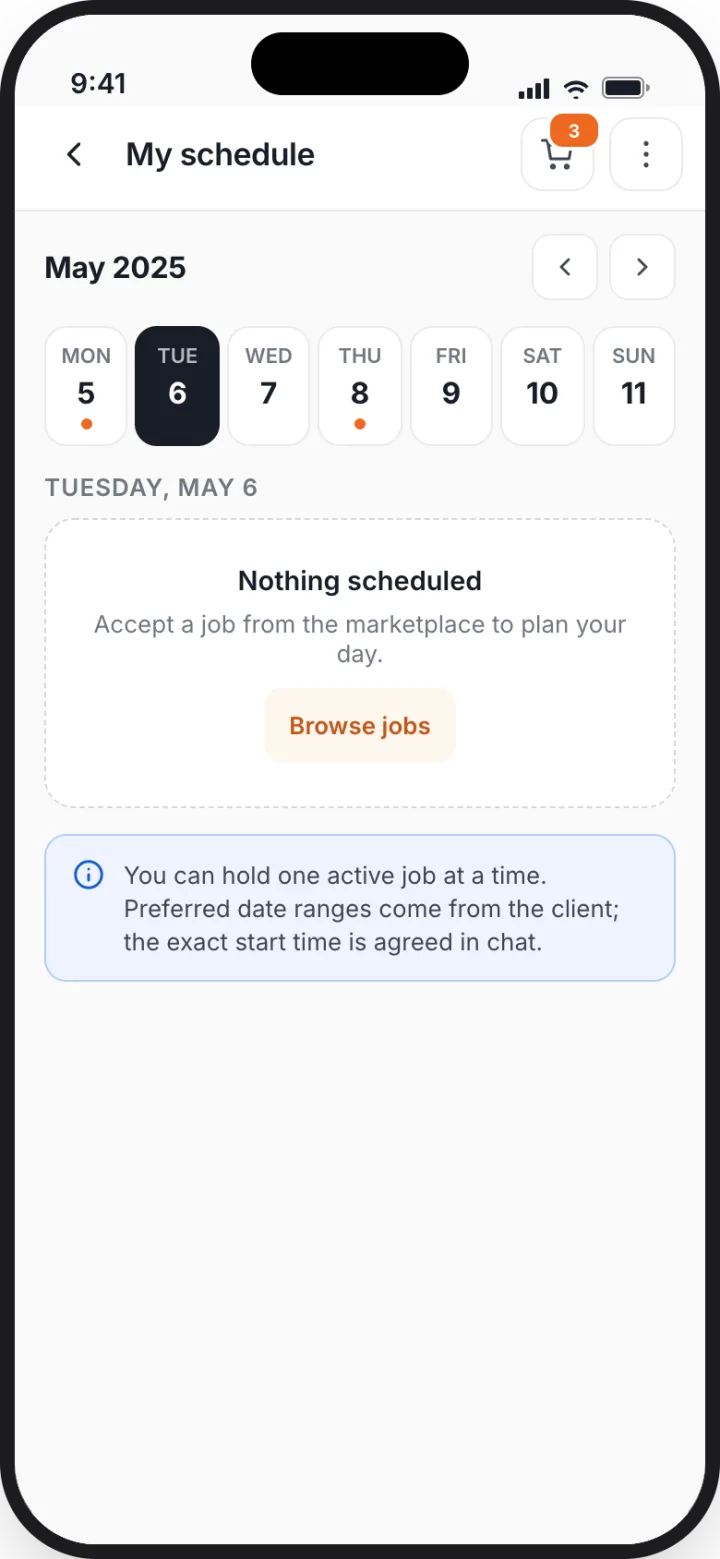
Your accepted jobs by day, with times and locations.
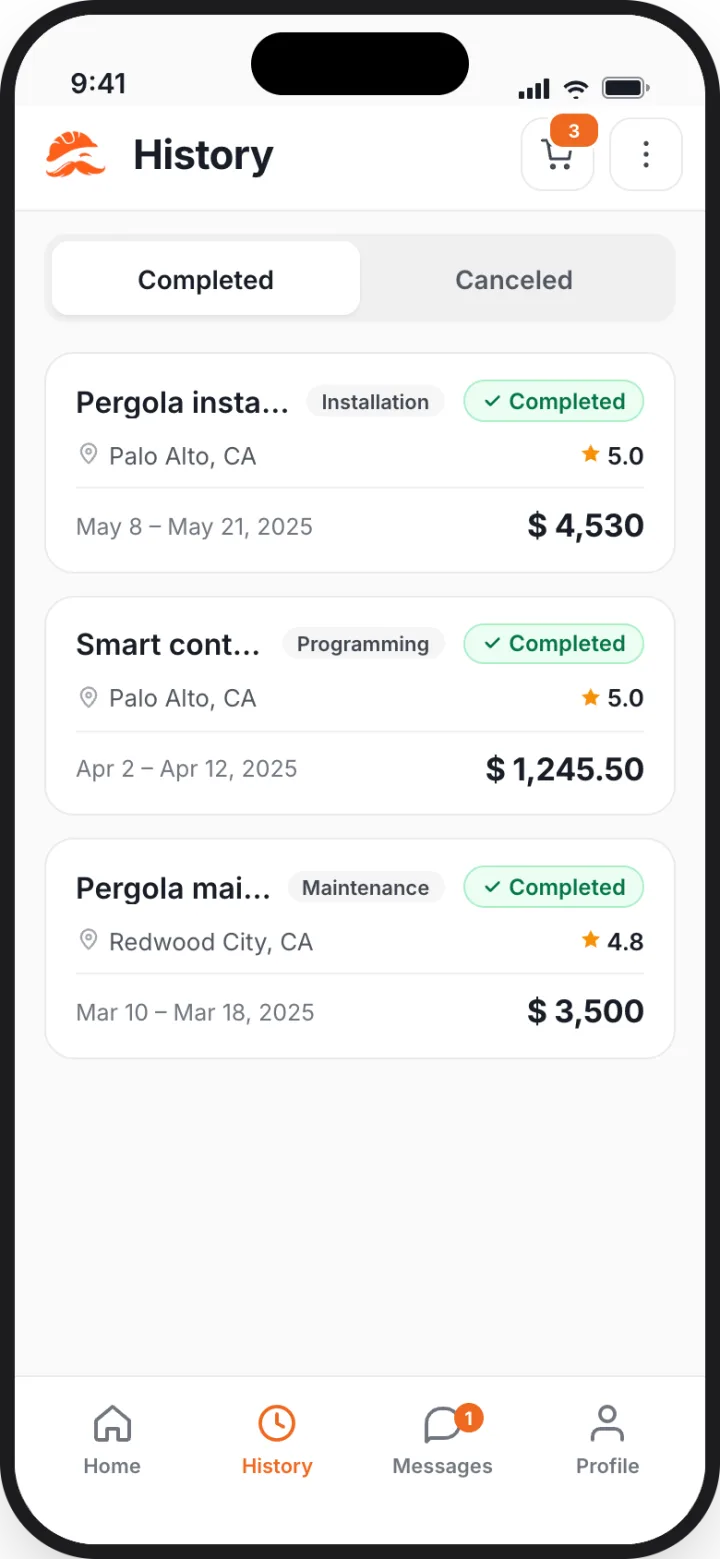
Completed and canceled jobs, with details and client ratings.
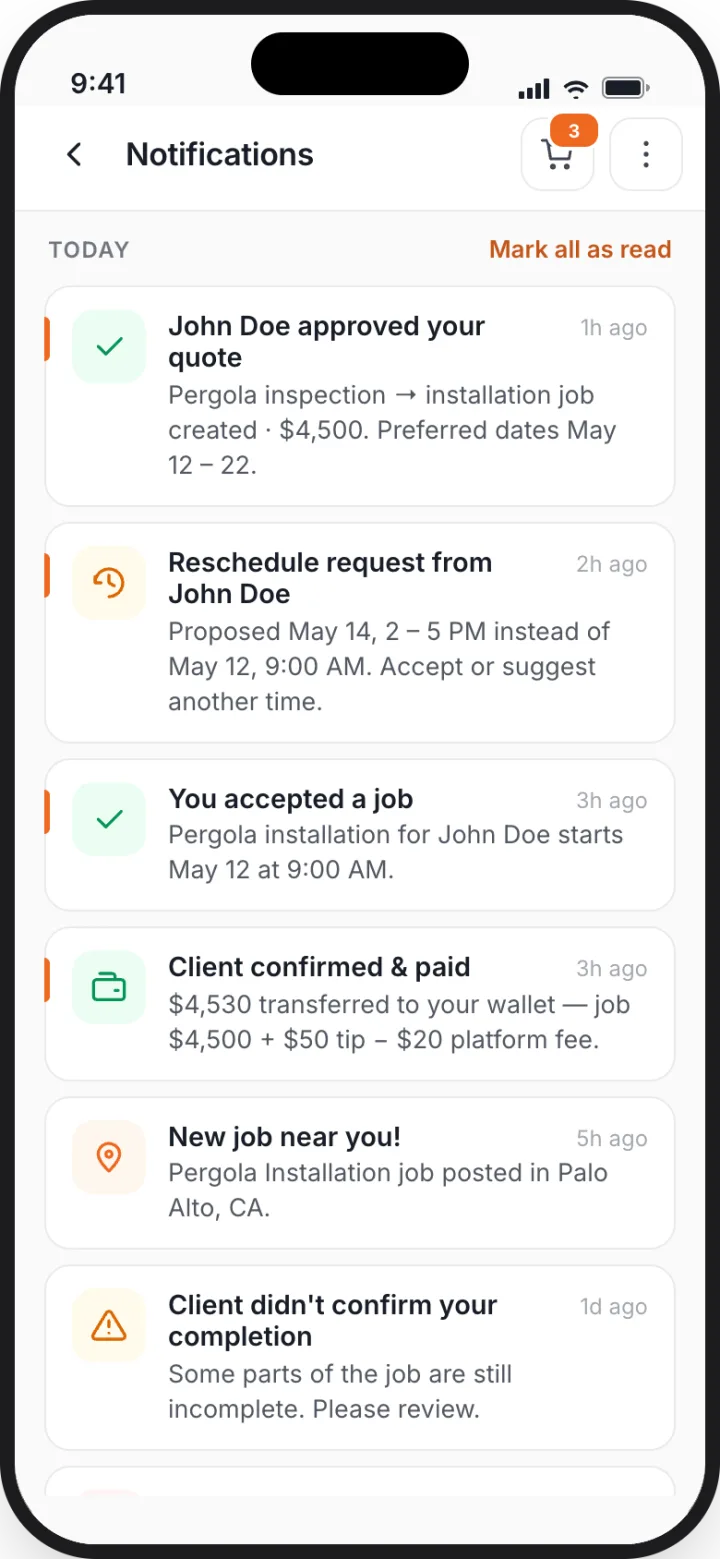
New jobs, client approvals, reschedule requests, confirmations and payouts. Each opens the right screen.
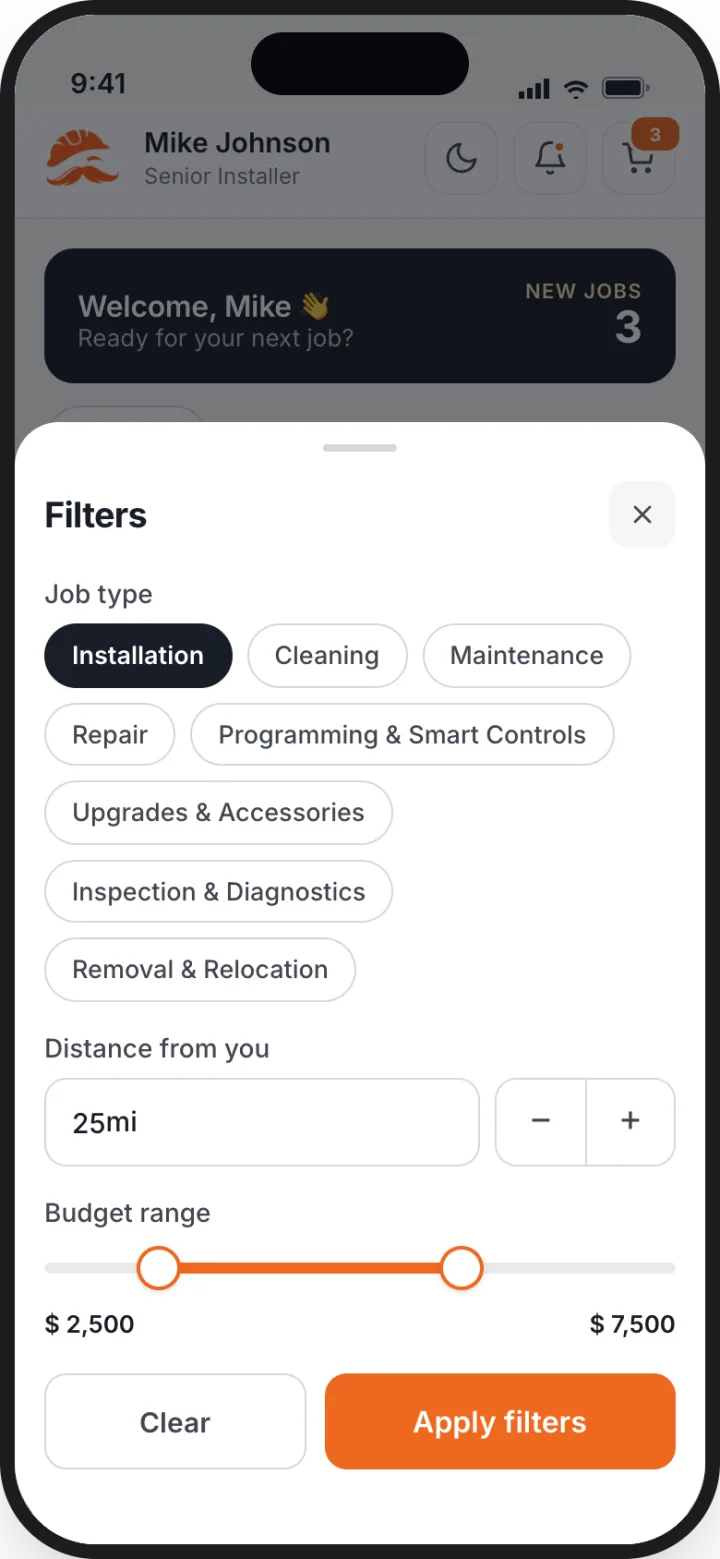
Narrow the marketplace by service type, distance and dates so you only see work you can take.
Questions contractors ask.
Payment terms, eligibility criteria and job volume will be published when the contractor program opens. Nothing below is a guarantee.