
Mr. Builder
For homeowners

Your pergola, handled from first quote to last repair.

Tell MrBuilder what you need. We price it, match a vetted professional, and keep you updated in one thread, with photos, messages and payment all in the app.

Submit My Request See how it works
Quick service request Tell us what you need. We'll take it from there. Submit directly here, no download required. A MrBuilder coordinator follows up with next steps.
Submitting adds your request to our queue; nothing is scheduled or charged until you approve a quote.
Prefer the app? Download MrBuilder.
01
A quote before a booking

Describe the work, get an itemized quote, then decide. Nothing is scheduled until you approve.

02
Vetted professionals

MrBuilder matches your approved job to a contractor whose skills fit the work. You see who accepted, their rating and how to reach them.

03
One thread for everything

Status, messages, photos, documents and receipts stay with the request, not scattered across texts and emails.

04
You confirm before paying

The contractor marks the job complete with proof photos. You review, confirm and pay in the app, or report an issue.

The customer journey

Seven steps, one request.

Every step is shown with the real screen from the MrBuilder consumer app. Names, prices and dates are sample data.

1New request

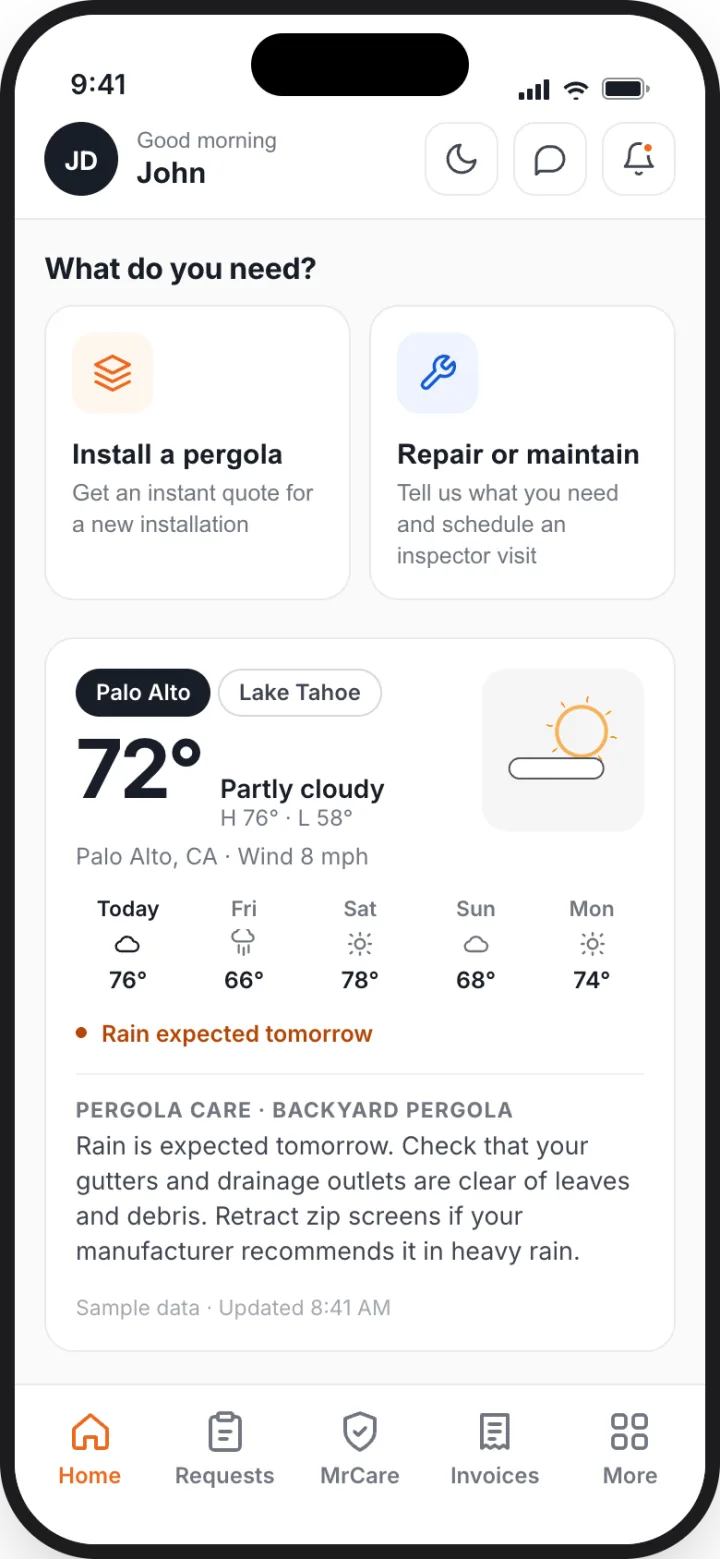
Choose installation or repair.

From Home or the Requests tab, pick "Install a pergola" for a new structure or "Repair or maintain" for an existing one. Each opens a short, structured form.
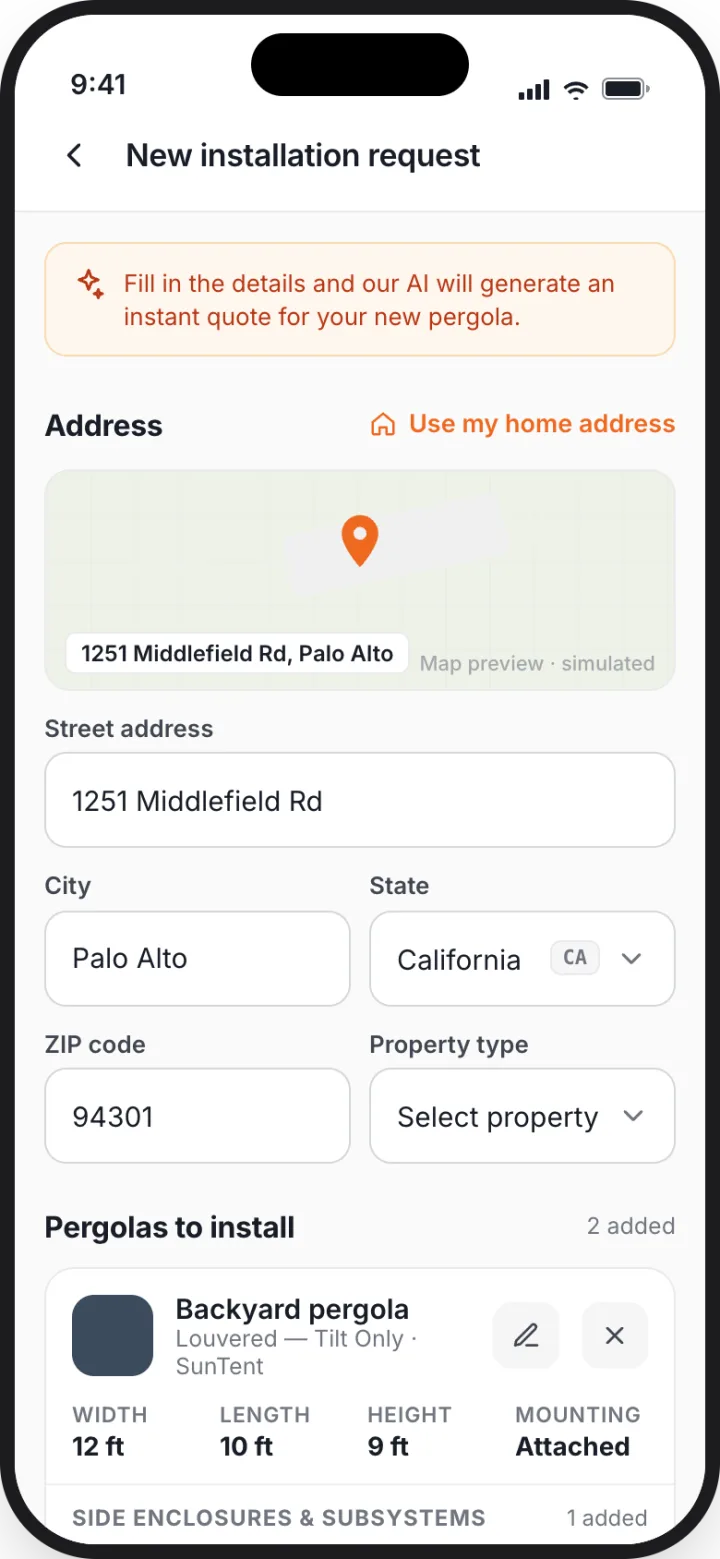
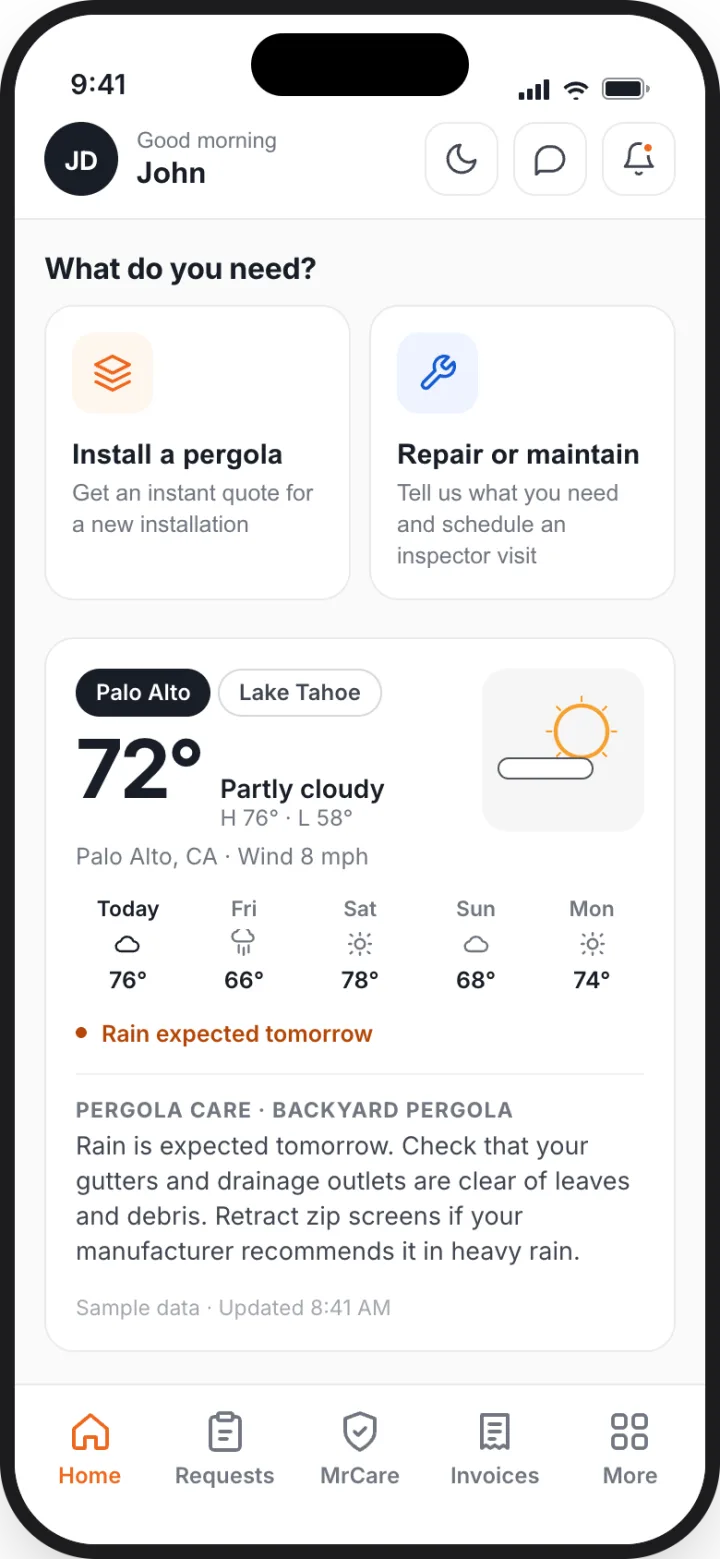
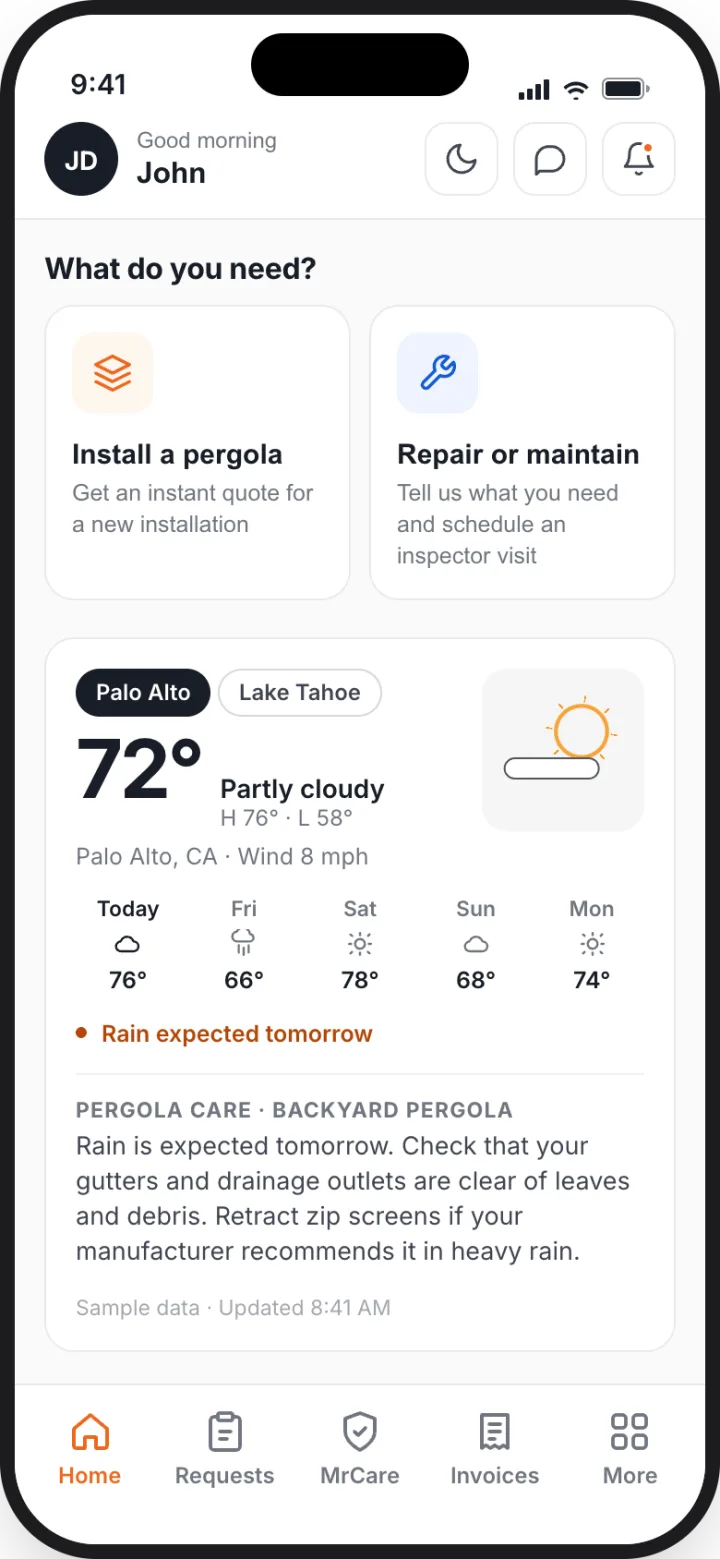
ScreenHome: What do you need? Install a pergola · Repair or maintain, plus a weather and pergola-care card for your property.
ScreenNew request: two options and the MrCare promo.
Home: tap "Install a pergola".
Consumer app
Home: tap "Install a pergola".
2Submitted

Give the details once.

Address, property type, preferred dates and notes; then each pergola's type, brand, mounting and W × L × H, with photos and plan documents. For repairs: the pergola, service type, description, urgency, a time window and photos.
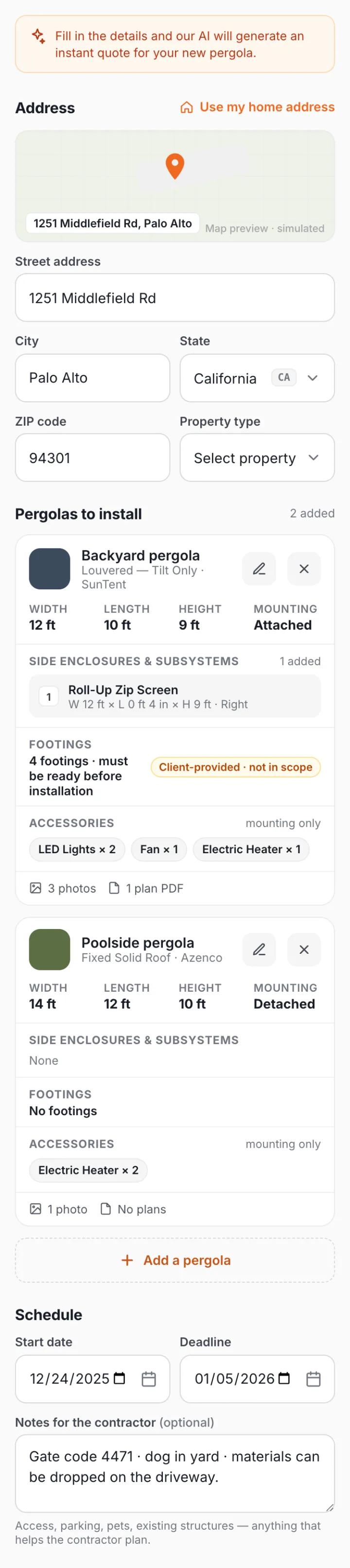
ScreenNew installation request: Address, Project details, Pergolas to install.
ScreenAdd pergola: type, brand, dimensions, attachment, enclosures, footings, accessories, photos and plan PDF.
Scroll to the pergolas section and tap "Add a pergola".
Consumer app
Scroll to the pergolas section and tap "Add a pergola".
3Quote ready

Review the quote. Approve or decline.

MrBuilder prices the request from your details, or from an inspector's on-site report when the job needs one. The quote is itemized, valid for a set period, and can be approved, declined with a reason, or shared.
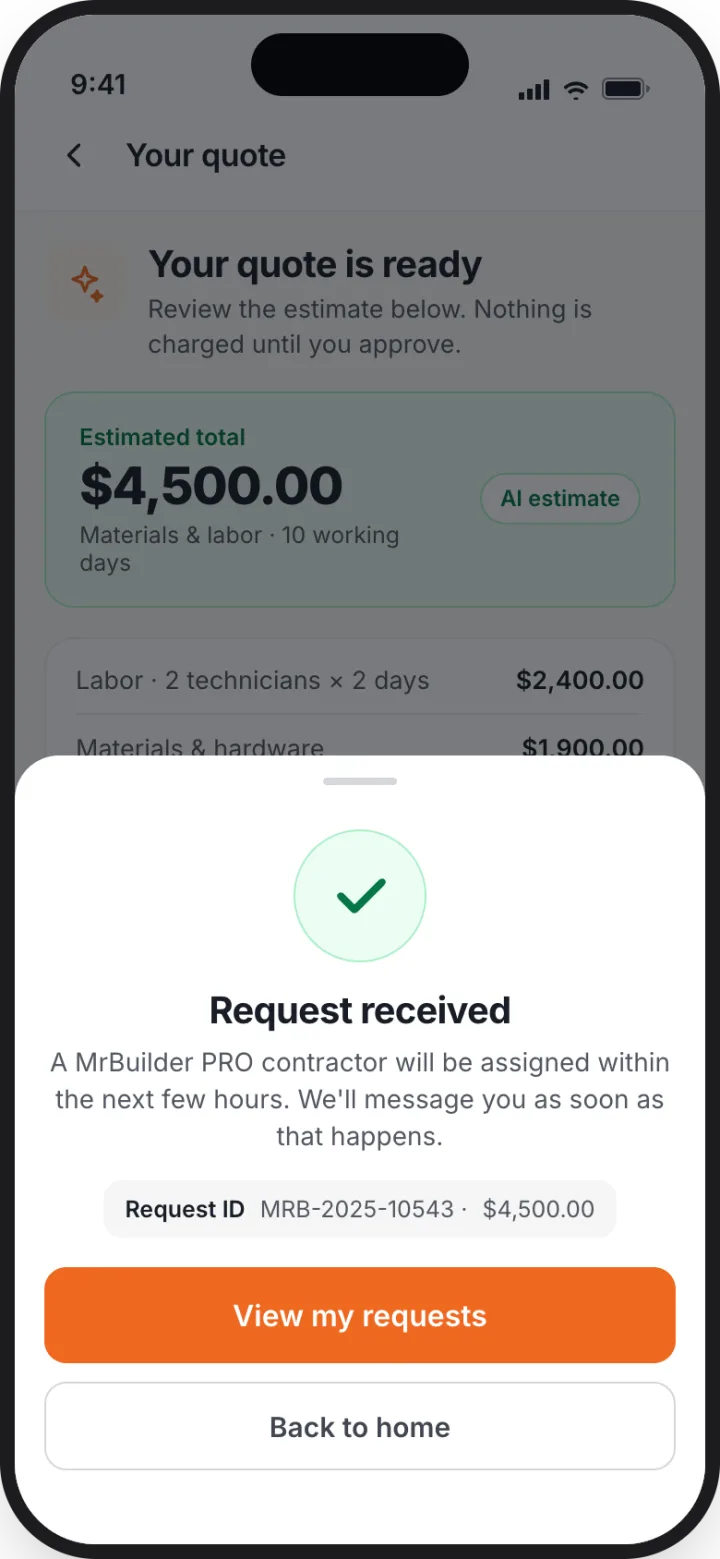
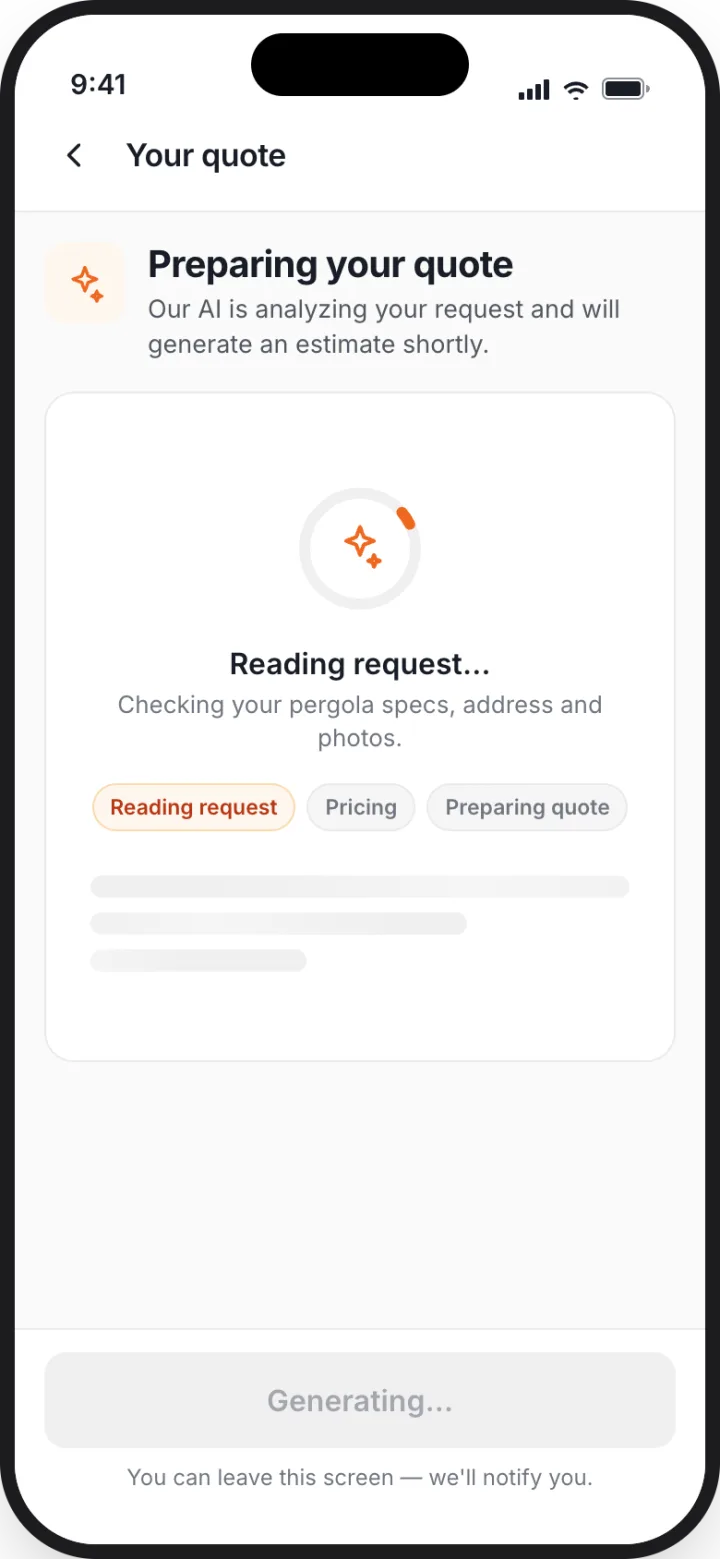
ScreenQuote: total, summary table and the pergolas included.
ScreenRequest details: inspector report with findings, photos and itemized quote.
MrBuilder prices the request from your details.
Consumer app
MrBuilder prices the request from your details.
4Contractor assigned

A professional accepts your job.

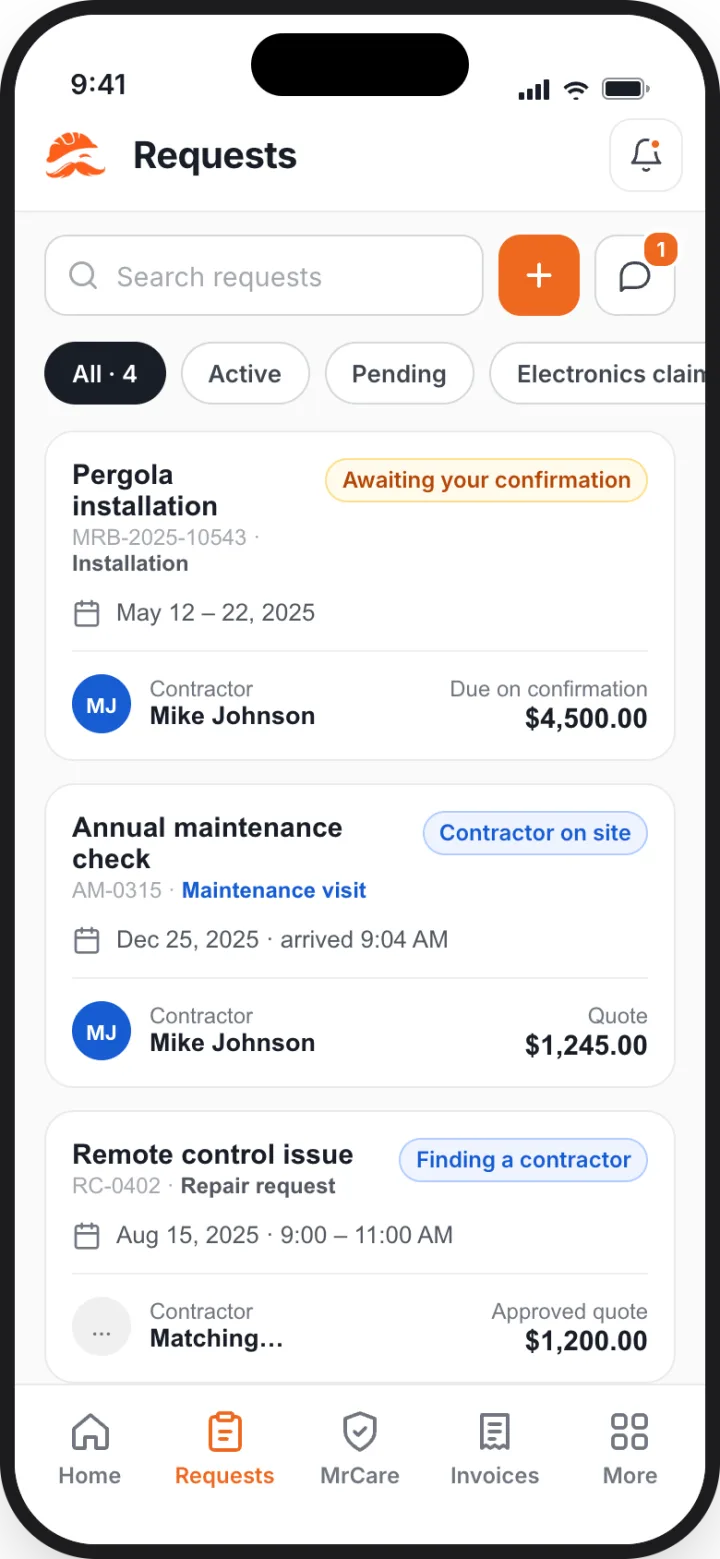
Approved jobs are matched to a vetted contractor. You see their name, rating and contact options, the scheduled window, and can reschedule, add the visit to your calendar, or cancel.
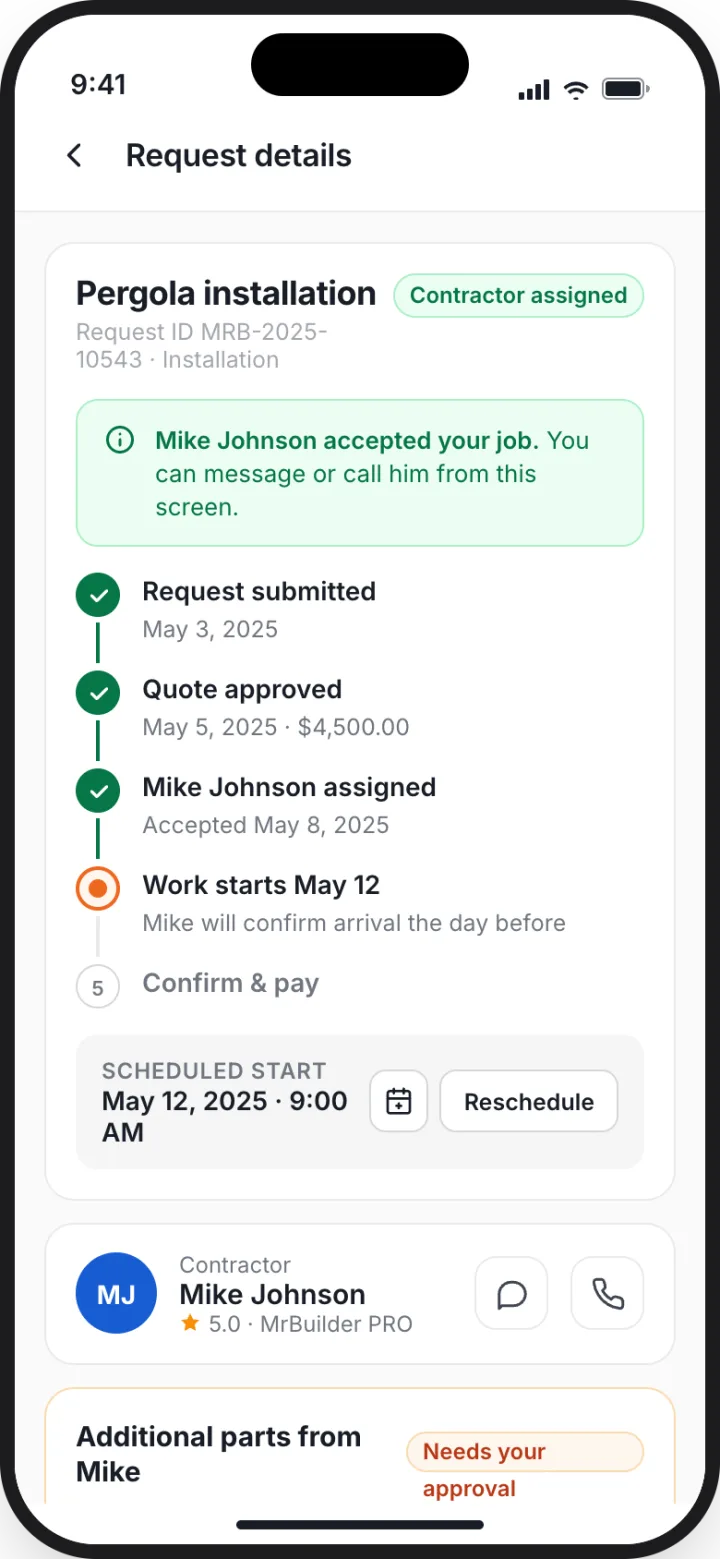
ScreenRequest details: contractor assigned, with Message, Call, Reschedule and Add to calendar.
ScreenRequests: all your requests with status chips.
Open the request from your Requests list.
Consumer app
Open the request from your Requests list.
5In progress

Follow the visit as it happens.

You're notified when the contractor is on the way, when they arrive and when work starts. The timeline updates from their app in real time.
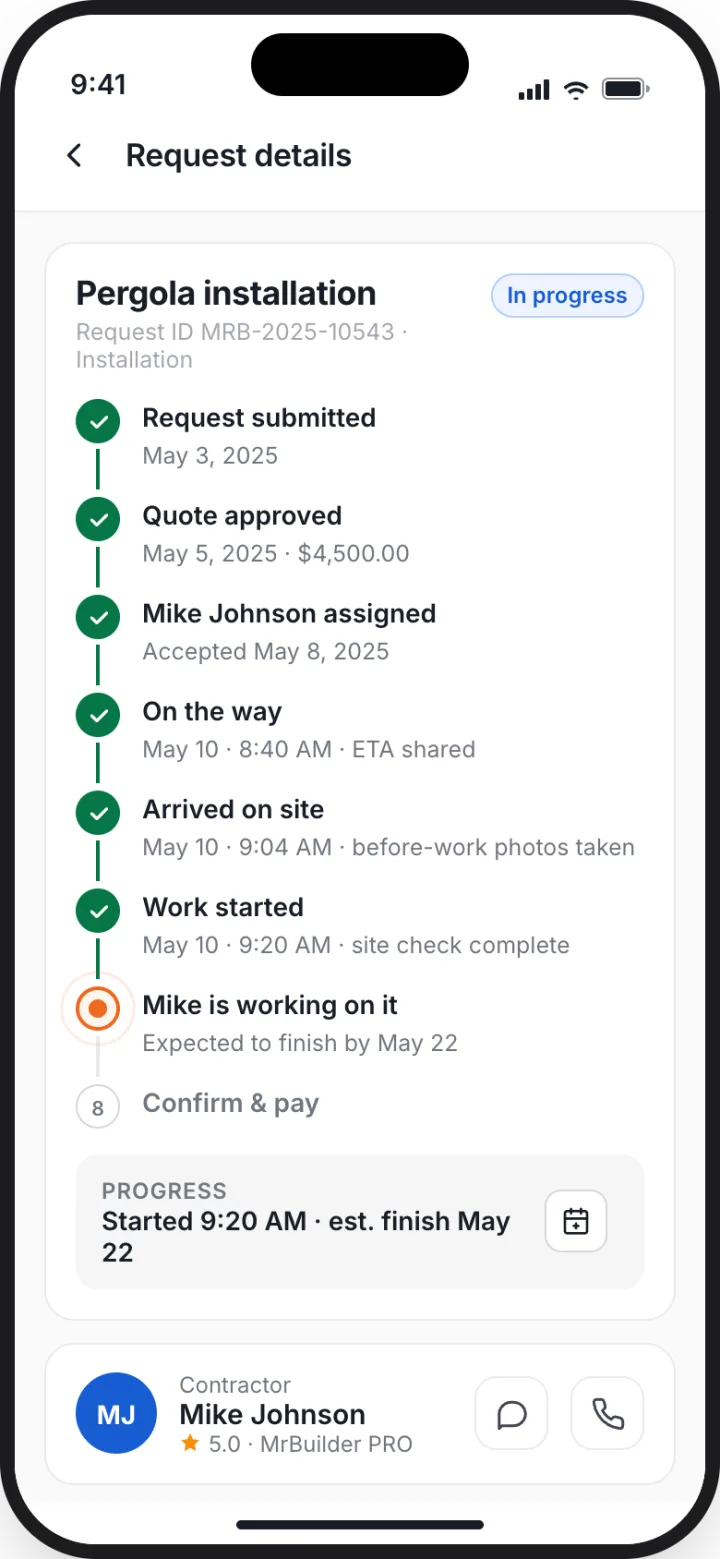
ScreenRequest details: contractor on the way, with ETA.
ScreenRequest details: In progress with live steps.
Contractor assigned, visit window confirmed.
Consumer app
Contractor assigned, visit window confirmed.
6Chat

Talk to your professional in the job thread.

Each request has a chat with the assigned professional. Quotes and reports appear as cards; the phone icon opens their contact card. When a job ends, the thread stays as a record.
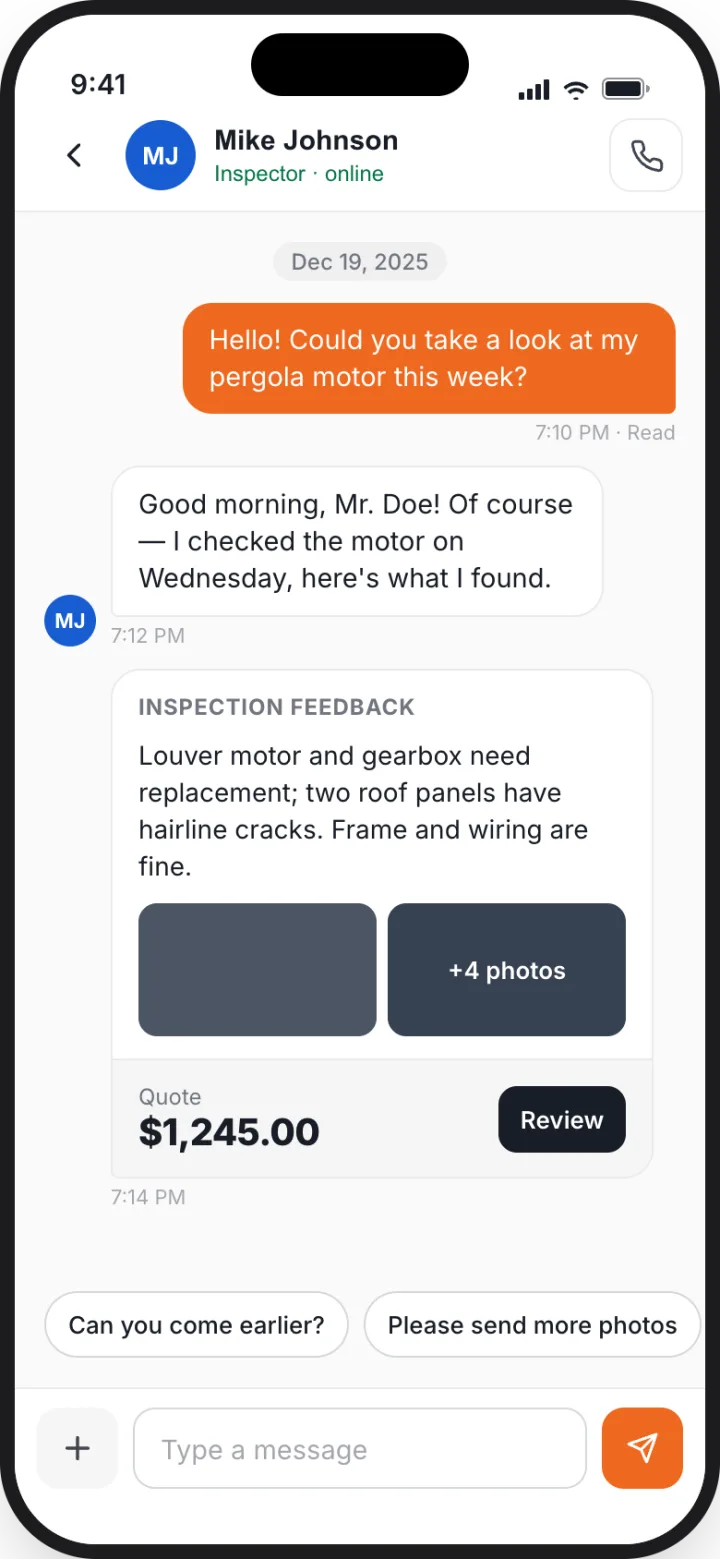
ScreenChat: conversation with the technician, quote card with Review.
ScreenInvoices: payment balance and invoice cards with PDF / Pay.
Tap the message icon on your request.
Consumer app
Tap the message icon on your request.
7Completed · paid

Review the finished work, confirm and pay.

The contractor submits proof photos and a note. You confirm and pay (with an optional tip) or report an issue and payment stays on hold. Afterwards you can rate the professional.
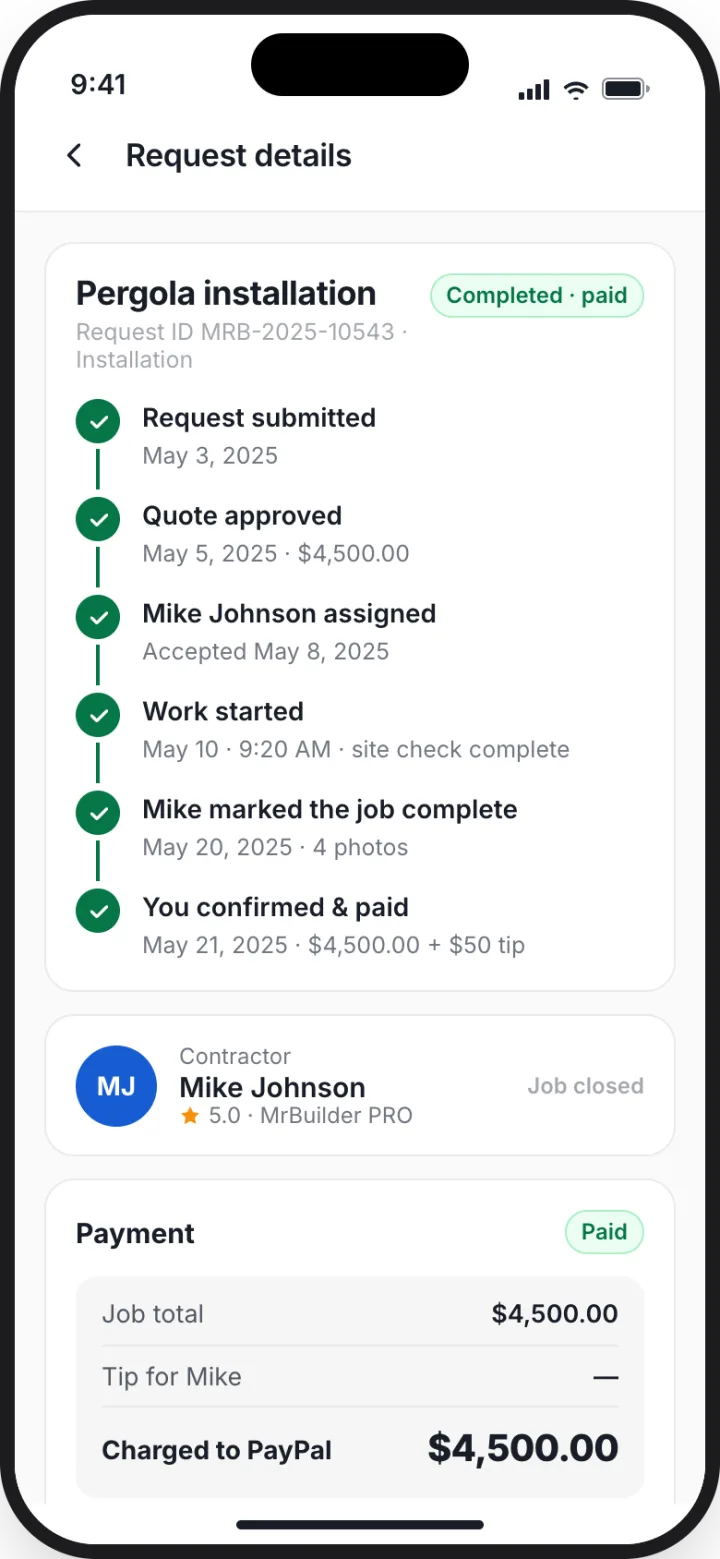
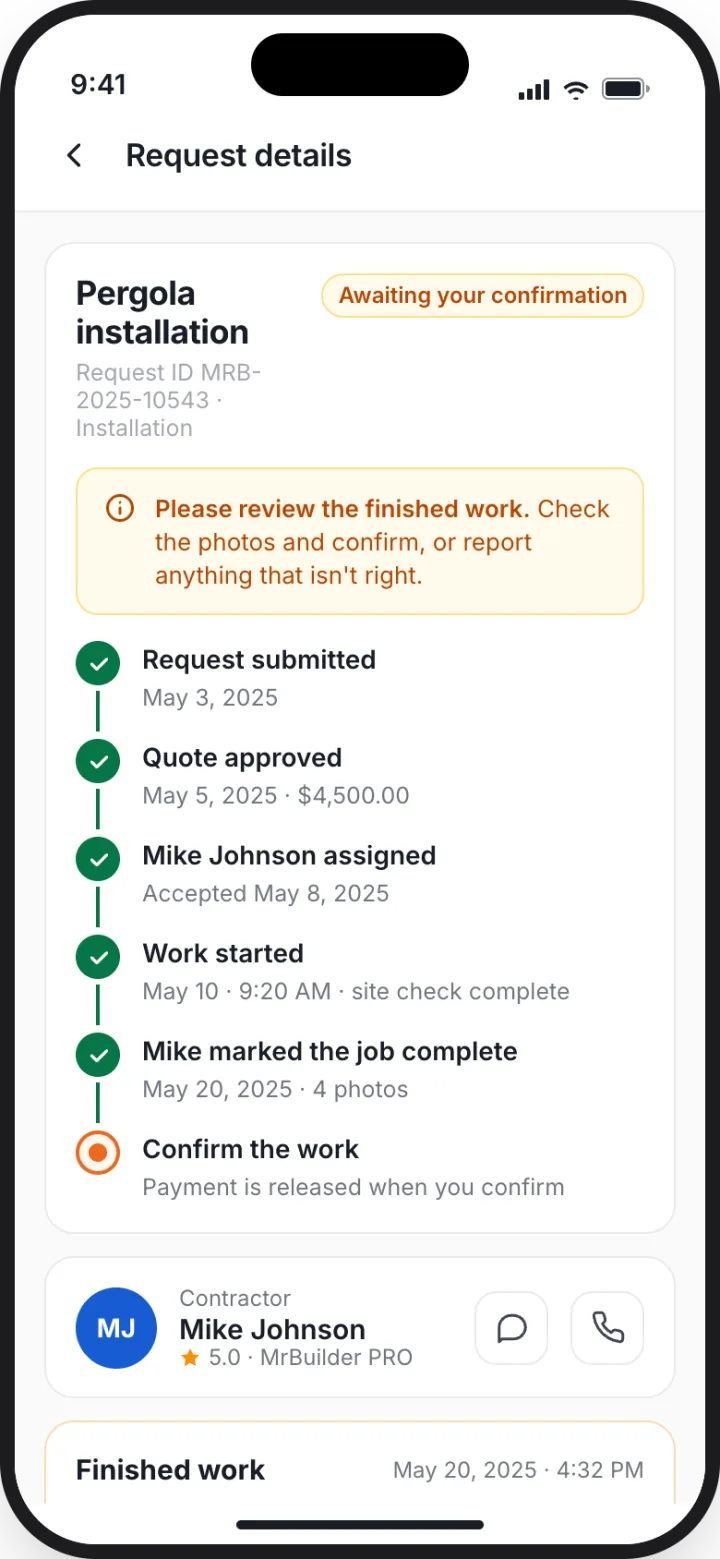
ScreenRequest details: Awaiting your confirmation, with Confirm & pay / Report an issue.
ScreenConfirm & pay: tip presets, charge summary and payment method.
Review the contractor's proof photos, then tap "Confirm & pay".
Consumer app
Review the contractor's proof photos, then tap "Confirm & pay".
MrCare

Two ways to protect your pergola.

After installation, MrCare in the consumer app offers two separate, optional offerings. Buy either, or both.

Service & Maintenance Subscription

Scheduled inspections, cleaning and priority scheduling across Essential, Plus and Premium plans. Book included visits from the app.

Electronics Protection Plan

Repair or replacement coverage for motors, sensors, remotes and controllers, sold per pergola. Report an electronics issue as a claim.
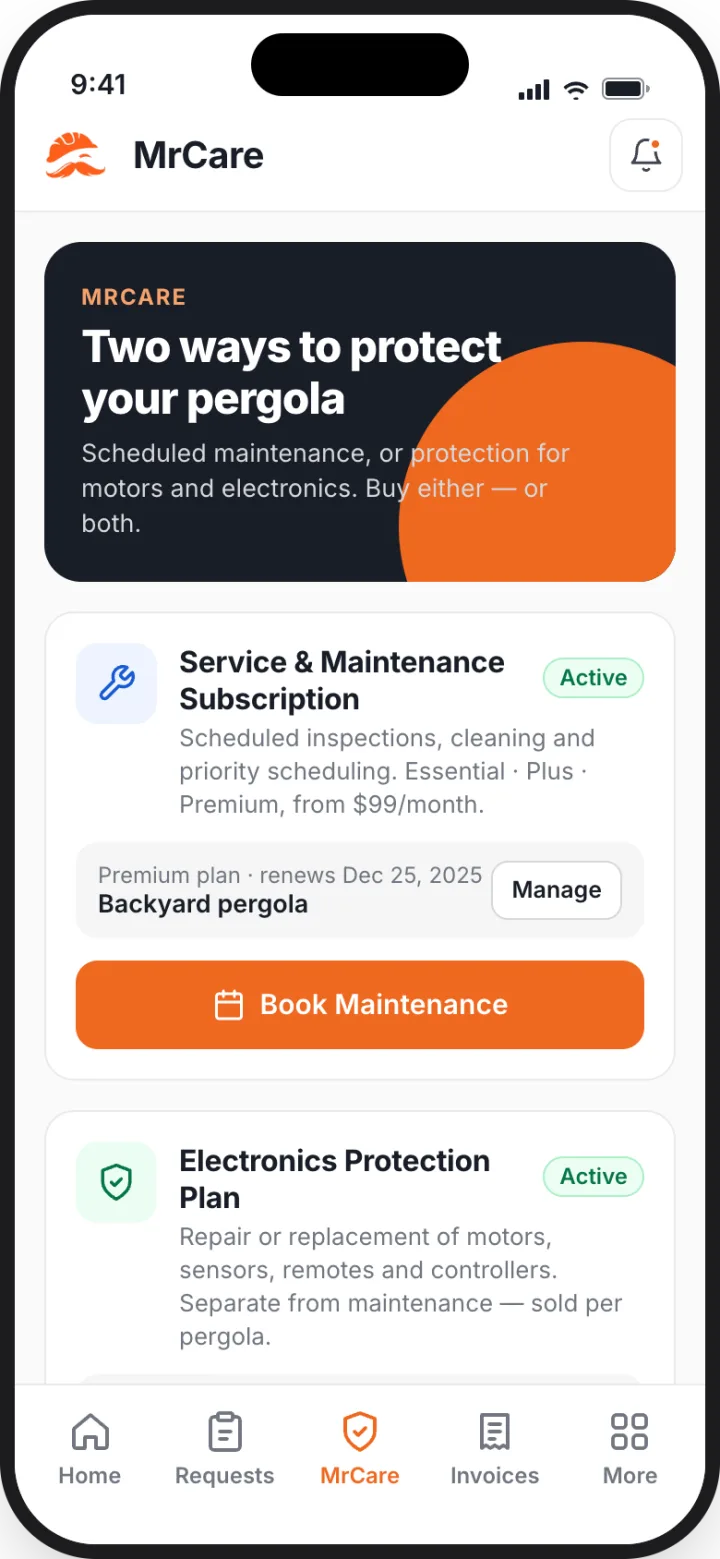
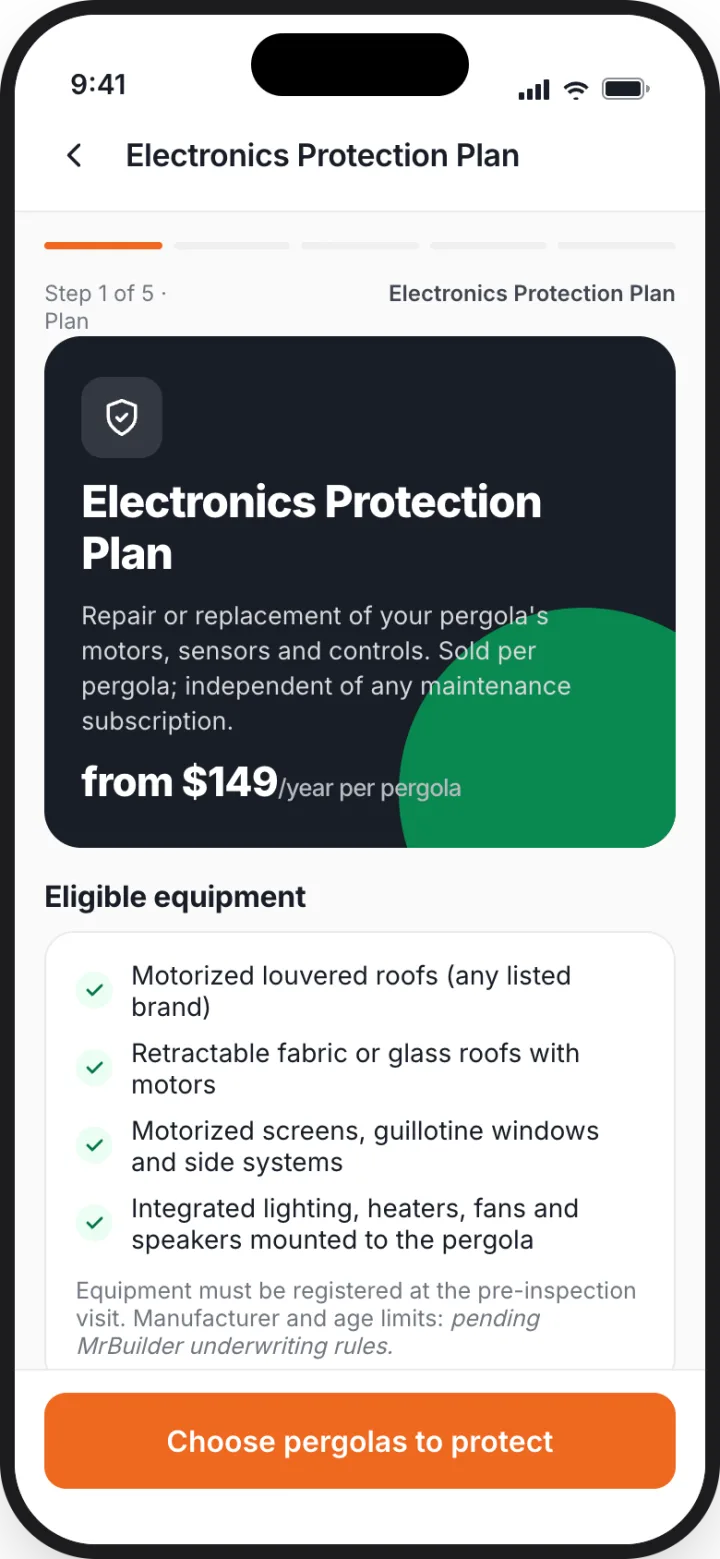
Plan contents, pricing and terms are shown in the app at purchase and are still being finalized.
Consumer app: MrCare hub with both offerings Consumer app: Electronics Protection Plan details
Also in the app

Everything about your pergola, in one place.
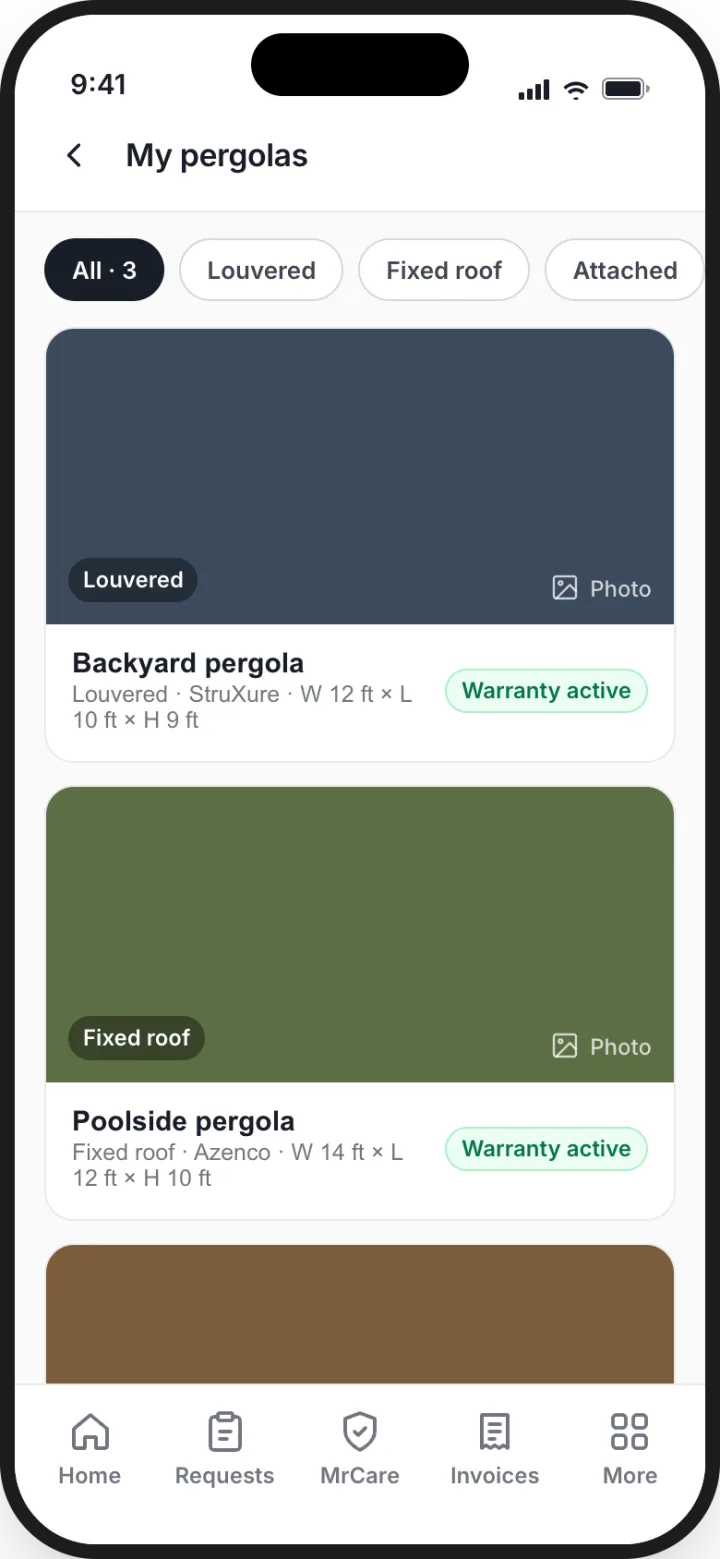
Consumer app: My pergolas
My pergolas

Each structure with its type, dimensions, warranty status and service history.
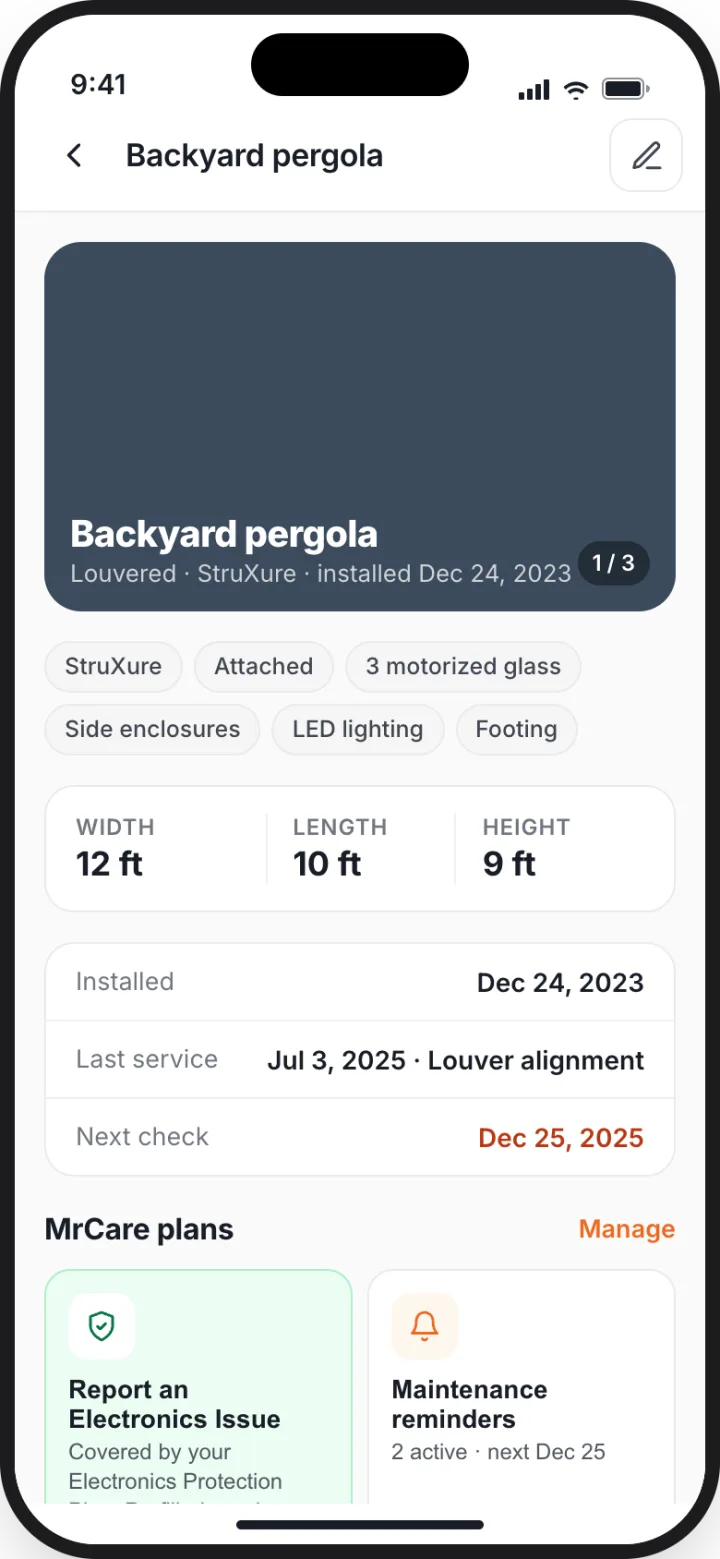
Consumer app: pergola details
Pergola details

Specs, dimensions, dates, warranties and last services on one page.
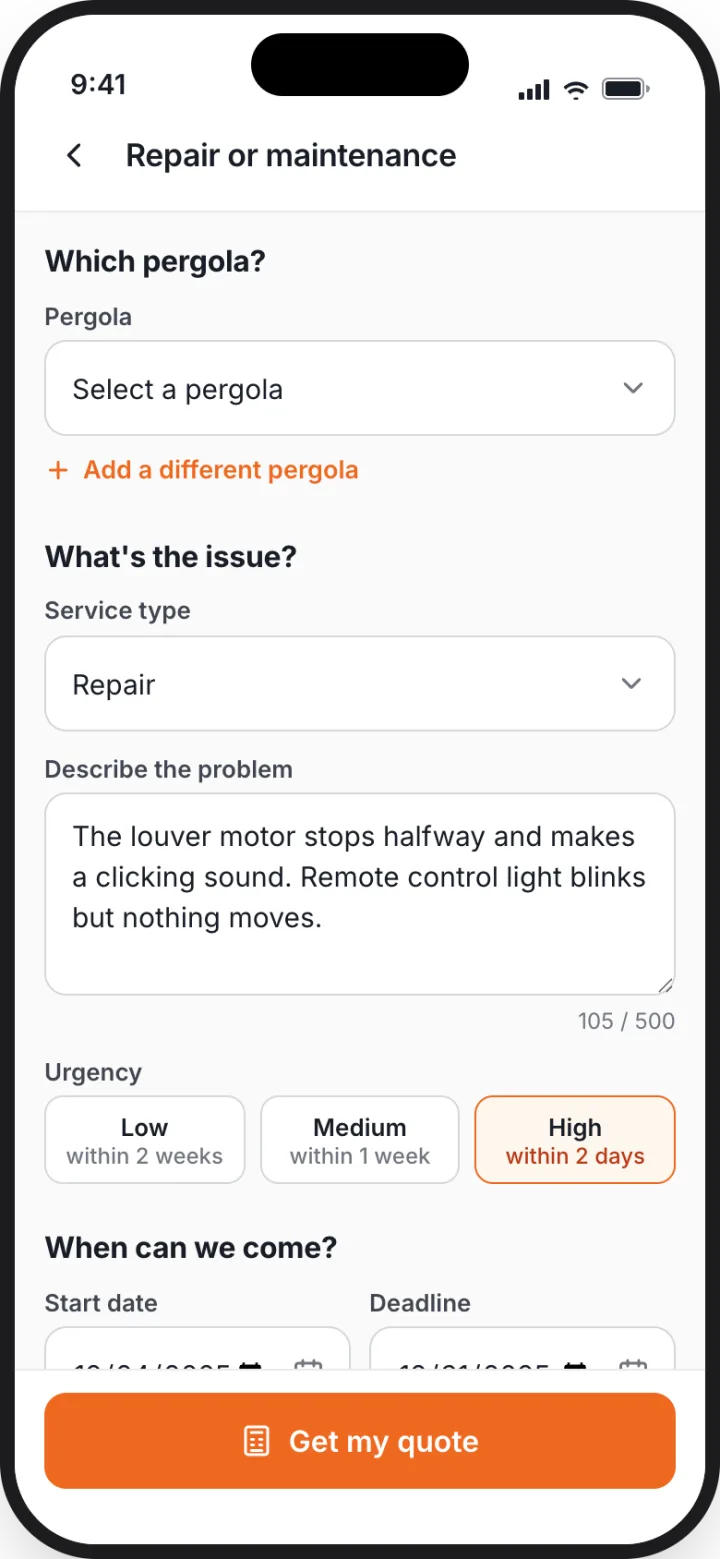
Consumer app: repair request form
Repair requests

Pick the pergola and service type, describe the issue, set urgency and a time window, attach photos.

Consumer app: completed request with receipt
Receipts & ratings

Completed requests keep the receipt and let you rate the professional.
FAQ

Good to know.

No. You approve a quote first; payment is made when you confirm the finished work in the app. If you report an issue, payment stays on hold while it is resolved.
MrBuilder for homeowners

Get Started with your first request.

Download the MrBuilder app, sign up with your email, and create an installation or repair request in a few minutes. You'll see a quote before anyone is booked.

Get Started Bought from a partner company?
Starting in the United States.
Consumer app: New request with two options Consumer app: Home in dark mode